> ## Documentation Index
> Fetch the complete documentation index at: https://decageo.ai/docs/llms.txt
> Use this file to discover all available pages before exploring further.
# AI Ranking Chart
> The weekly ranking of every product AI recommends in a category — with weekly signals, market segment filters, in-chart search, and comparison.
The AI Ranking Chart is the weekly ranking of every product AI recommends in a category, ordered by [DECA Score](/docs/metrics/deca-score). There is no sign-up and nothing to configure — open a category from **Charts** in the header, or search any brand or domain to land on its chart directly.
 ## This week's brands to watch
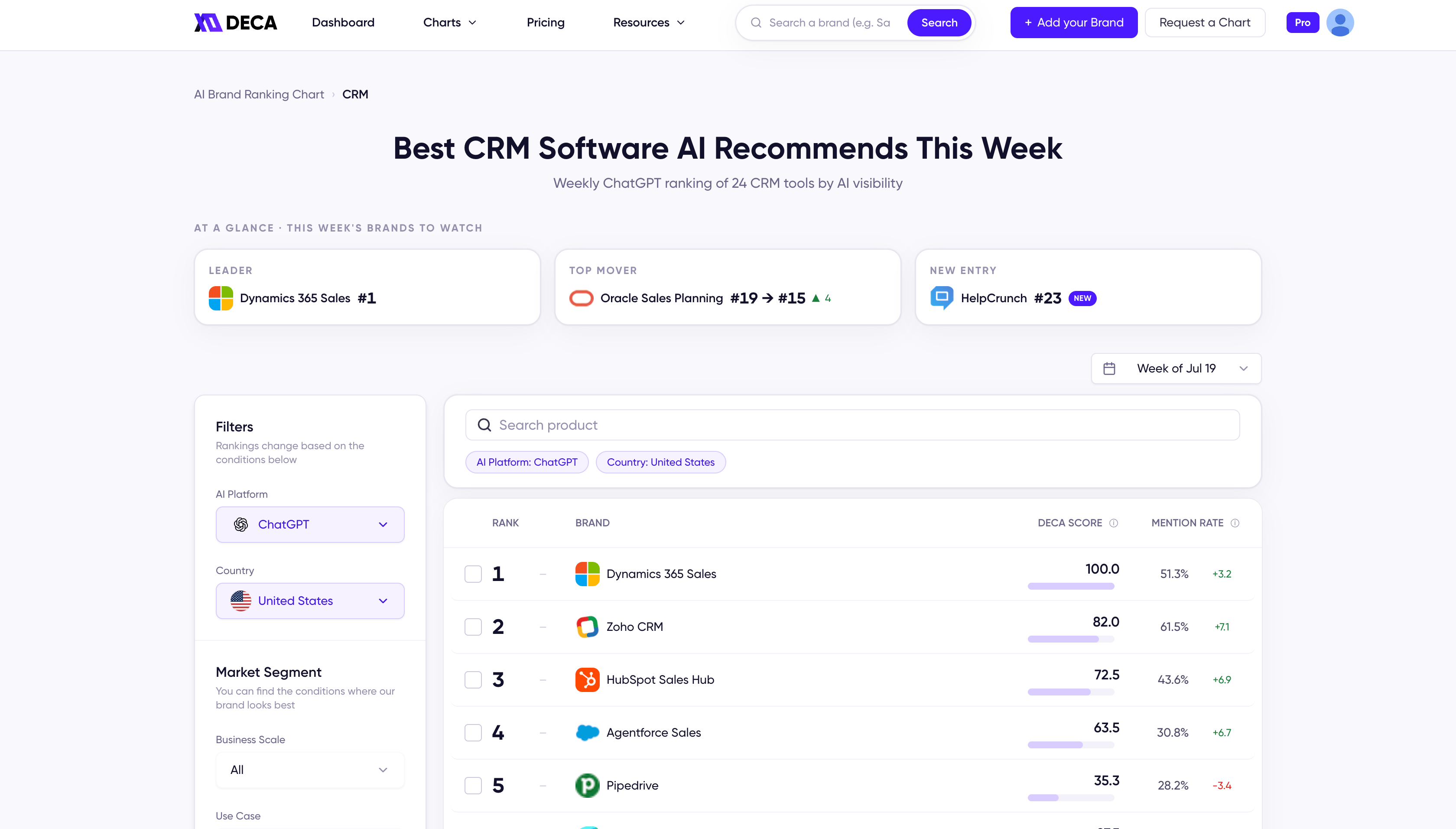
Every chart opens with three signal cards — the week's **Leader**, the biggest **Top Mover** with its jump (e.g. #19 → #15), and the newest **New Entry**. See [Rank & weekly movement](/docs/metrics/rank-and-weekly-movement) for how each signal is determined.
Use the **week selector** at the top right of the chart to view past weeks.
## The ranking table
Each row is a product with:
* **Rank** and its movement since last week (▲ up, ▼ down, — unchanged, **New** for first appearance). Products with the same DECA Score share the same rank.
* **DECA Score** with a scale bar.
* **Mention Rate** with its change since last week.
Open any product row to see its [product details](/docs/using/product-details) — the evidence behind the position. To find a specific product, use the **Search product** bar above the table.
If you arrived from a brand search, the brand's row is highlighted with a summary card up top — its current rank, DECA Score, and Mention Rate, plus a shortcut to full details.
## Filters and market segments
Rankings change based on the conditions you set:
* **AI Platform** and **Country** — the engine and market the rankings are measured on.
* **Market Segment** — the buyer conditions defined for that category. Segments vary by category: the CRM chart filters by business scale, use case, and integration, while other categories use the conditions that matter in their market. Filtering doesn't just narrow the list — it re-ranks the category on the queries from that buyer context. See [Segment Position](/docs/metrics/segment-position).
Set the conditions, then click **Apply Filters**. **Clear Filters** returns to the overall chart.
## Compare from the chart
Check 2–4 products in the same category and click **Compare** in the tray at the bottom of the chart to line them up side by side. See [Compare](/docs/using/compare).
## Not seeing your brand?
There's no cutoff to fall below — if your brand isn't on the chart, AI simply hasn't recommended it in this category's context yet. Register it with [Add Your Brand](/docs/using/add-your-brand) to get notified the moment that changes.
## This week's brands to watch
Every chart opens with three signal cards — the week's **Leader**, the biggest **Top Mover** with its jump (e.g. #19 → #15), and the newest **New Entry**. See [Rank & weekly movement](/docs/metrics/rank-and-weekly-movement) for how each signal is determined.
Use the **week selector** at the top right of the chart to view past weeks.
## The ranking table
Each row is a product with:
* **Rank** and its movement since last week (▲ up, ▼ down, — unchanged, **New** for first appearance). Products with the same DECA Score share the same rank.
* **DECA Score** with a scale bar.
* **Mention Rate** with its change since last week.
Open any product row to see its [product details](/docs/using/product-details) — the evidence behind the position. To find a specific product, use the **Search product** bar above the table.
If you arrived from a brand search, the brand's row is highlighted with a summary card up top — its current rank, DECA Score, and Mention Rate, plus a shortcut to full details.
## Filters and market segments
Rankings change based on the conditions you set:
* **AI Platform** and **Country** — the engine and market the rankings are measured on.
* **Market Segment** — the buyer conditions defined for that category. Segments vary by category: the CRM chart filters by business scale, use case, and integration, while other categories use the conditions that matter in their market. Filtering doesn't just narrow the list — it re-ranks the category on the queries from that buyer context. See [Segment Position](/docs/metrics/segment-position).
Set the conditions, then click **Apply Filters**. **Clear Filters** returns to the overall chart.
## Compare from the chart
Check 2–4 products in the same category and click **Compare** in the tray at the bottom of the chart to line them up side by side. See [Compare](/docs/using/compare).
## Not seeing your brand?
There's no cutoff to fall below — if your brand isn't on the chart, AI simply hasn't recommended it in this category's context yet. Register it with [Add Your Brand](/docs/using/add-your-brand) to get notified the moment that changes.