> ## Documentation Index
> Fetch the complete documentation index at: https://decageo.ai/docs/llms.txt
> Use this file to discover all available pages before exploring further.
# Charts and Weekly Breakouts
> The Charts hub lists every category DecaGEO ranks; each chart has a Ranking tab and a Weekly Breakouts tab showing who entered or climbed this week and what they changed on their pages.
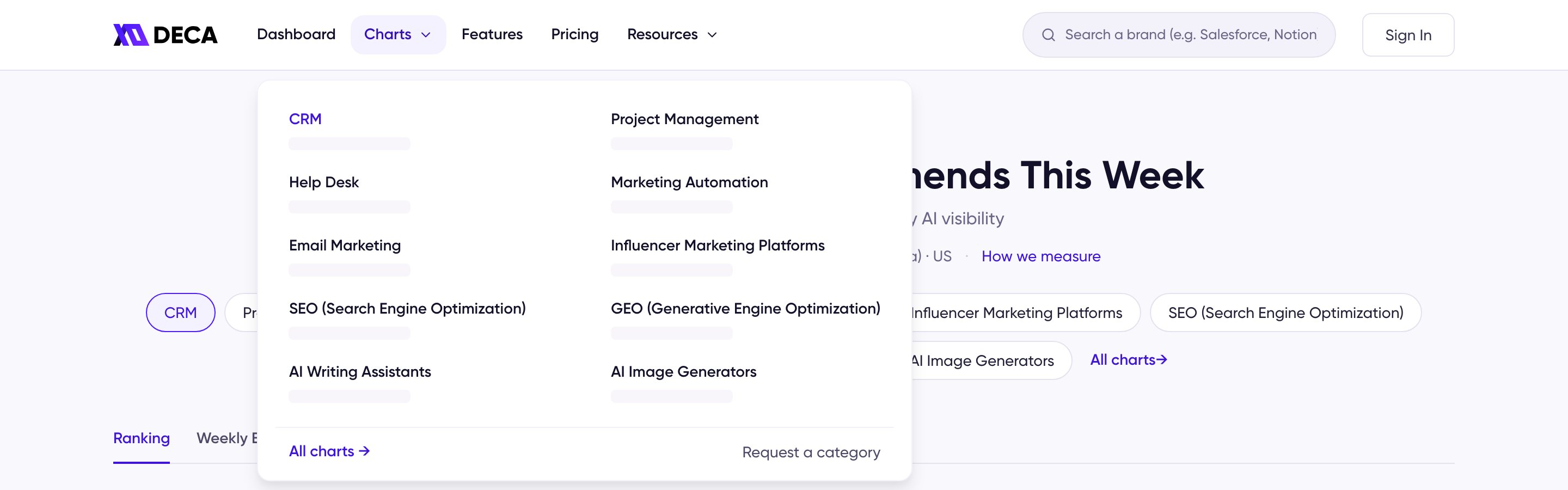
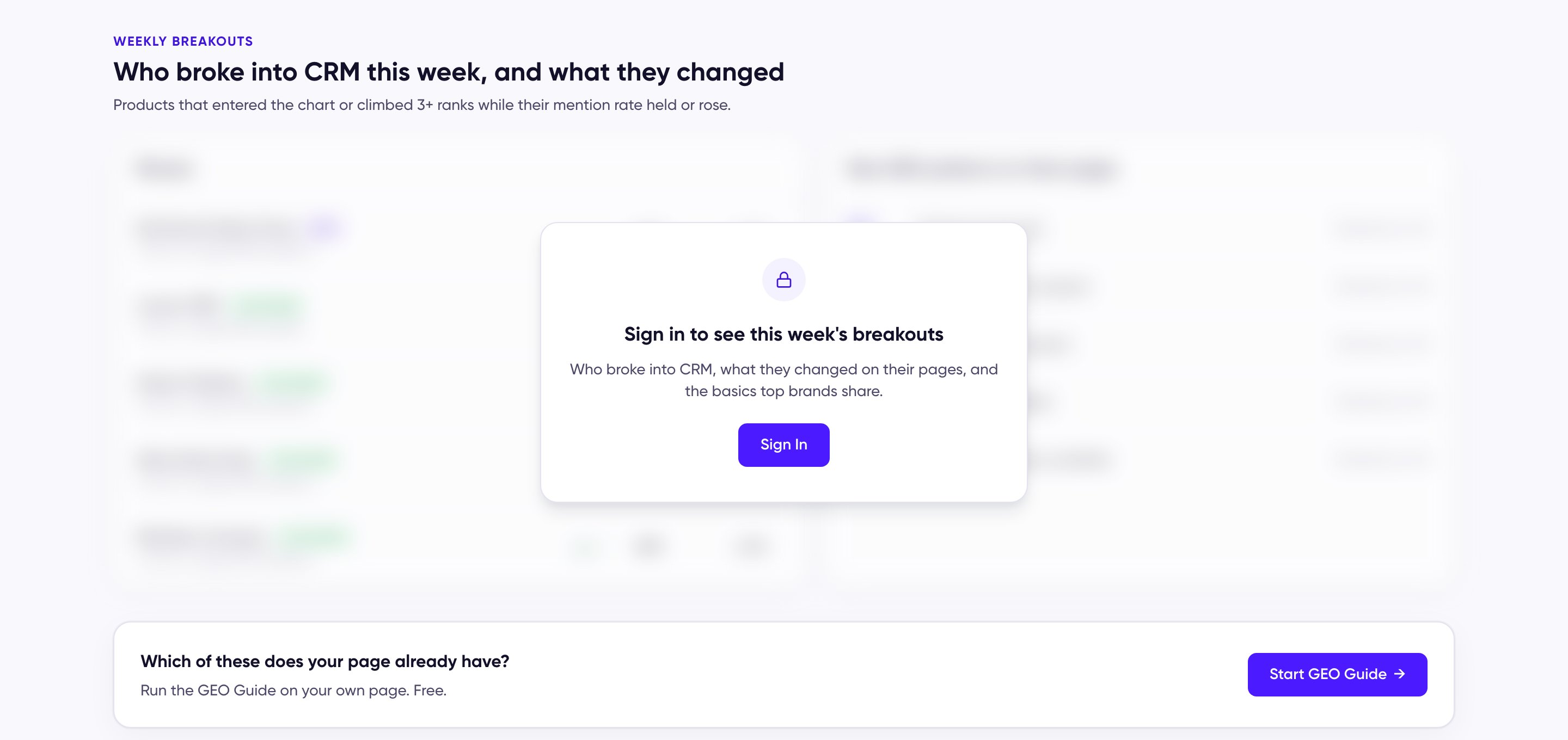
**Charts** in the header is the way into every ranking. Hovering it lists the ten categories with this week's #1 in each; clicking it opens the Charts hub. Each chart then has two tabs — **Ranking**, the weekly table, and **Weekly Breakouts**, the week's movers and what they changed. No account is needed for the hub or the ranking; Weekly Breakouts asks you to sign in for the week's list.
 ## The Charts hub
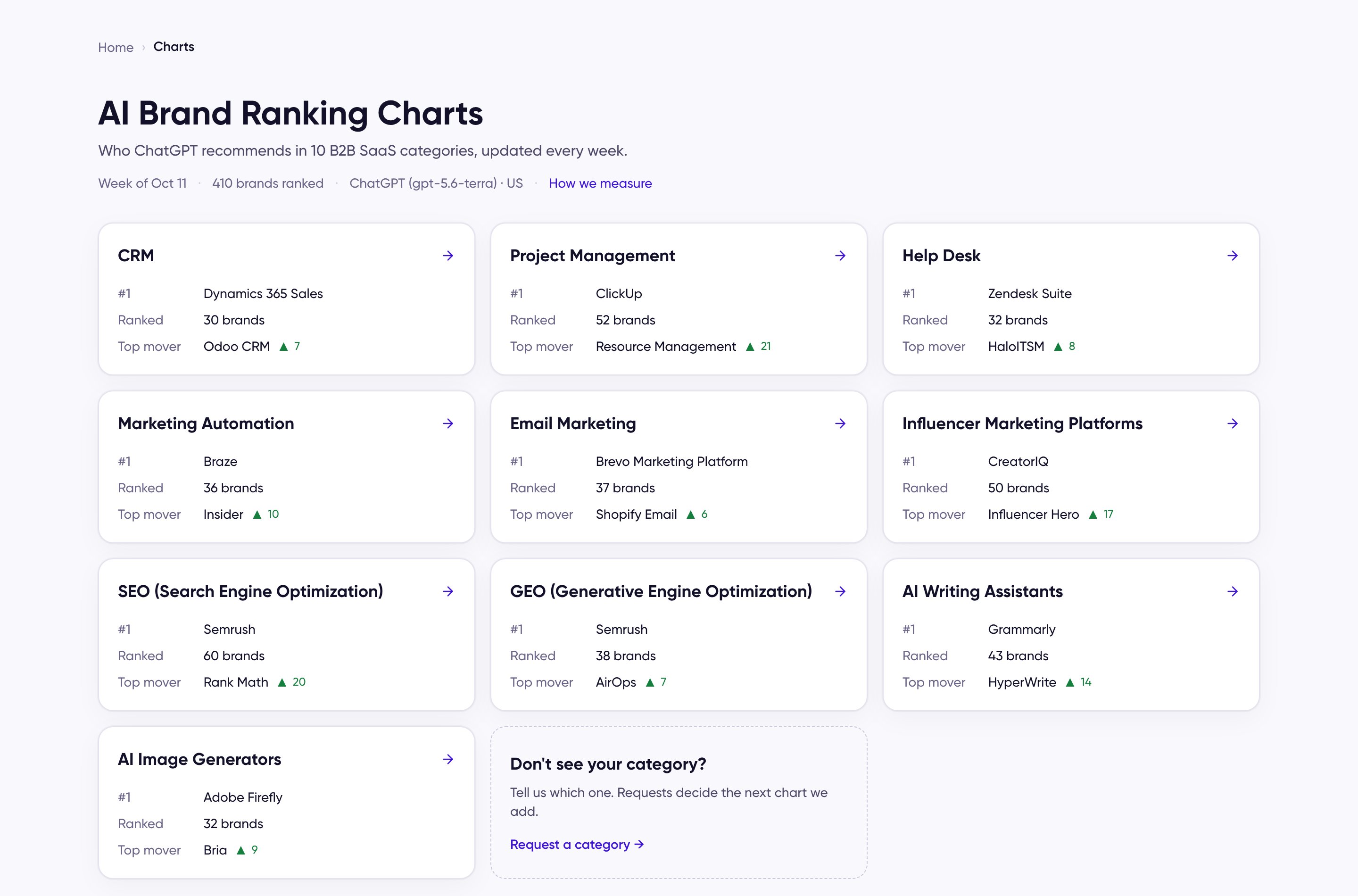
The hub shows one card per category: this week's **#1**, how many brands are **ranked**, and the **top mover** with how many places it climbed. The line above the cards names the week, the total brands ranked across all charts, and the AI platform and market measured, with a link to **How we measure**. Click a card to open that chart.
Under the cards, **Don't see your category?** opens the Request a Chart form — see [Add Your Brand](/docs/using/add-your-brand#market-not-covered-request-a-chart).
## The Charts hub
The hub shows one card per category: this week's **#1**, how many brands are **ranked**, and the **top mover** with how many places it climbed. The line above the cards names the week, the total brands ranked across all charts, and the AI platform and market measured, with a link to **How we measure**. Click a card to open that chart.
Under the cards, **Don't see your category?** opens the Request a Chart form — see [Add Your Brand](/docs/using/add-your-brand#market-not-covered-request-a-chart).
 ## A category chart
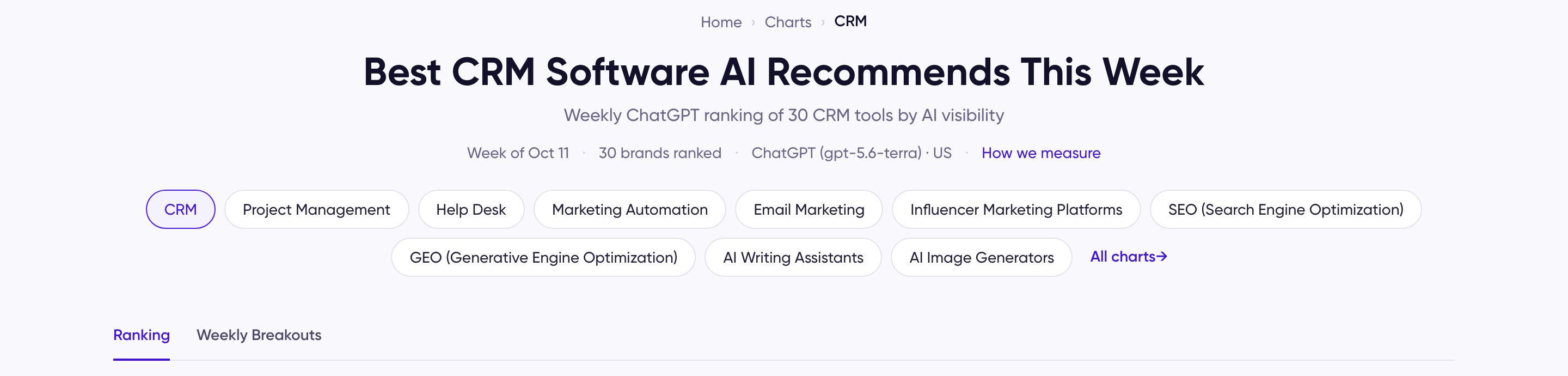
Every chart opens with its path (Home › Charts › category), the week, how many brands are ranked, and the model and market measured. A row of category chips switches to any other chart in place, and **All charts** returns to the hub. Below that sit the two tabs.
The **Ranking** tab is the weekly table — [AI Ranking Chart](/docs/using/ai-ranking-chart) explains its columns, filters, and market segments. A band under the table counts how many products broke in or climbed this week and opens the second tab.
## A category chart
Every chart opens with its path (Home › Charts › category), the week, how many brands are ranked, and the model and market measured. A row of category chips switches to any other chart in place, and **All charts** returns to the hub. Below that sit the two tabs.
The **Ranking** tab is the weekly table — [AI Ranking Chart](/docs/using/ai-ranking-chart) explains its columns, filters, and market segments. A band under the table counts how many products broke in or climbed this week and opens the second tab.
 ## Weekly Breakouts
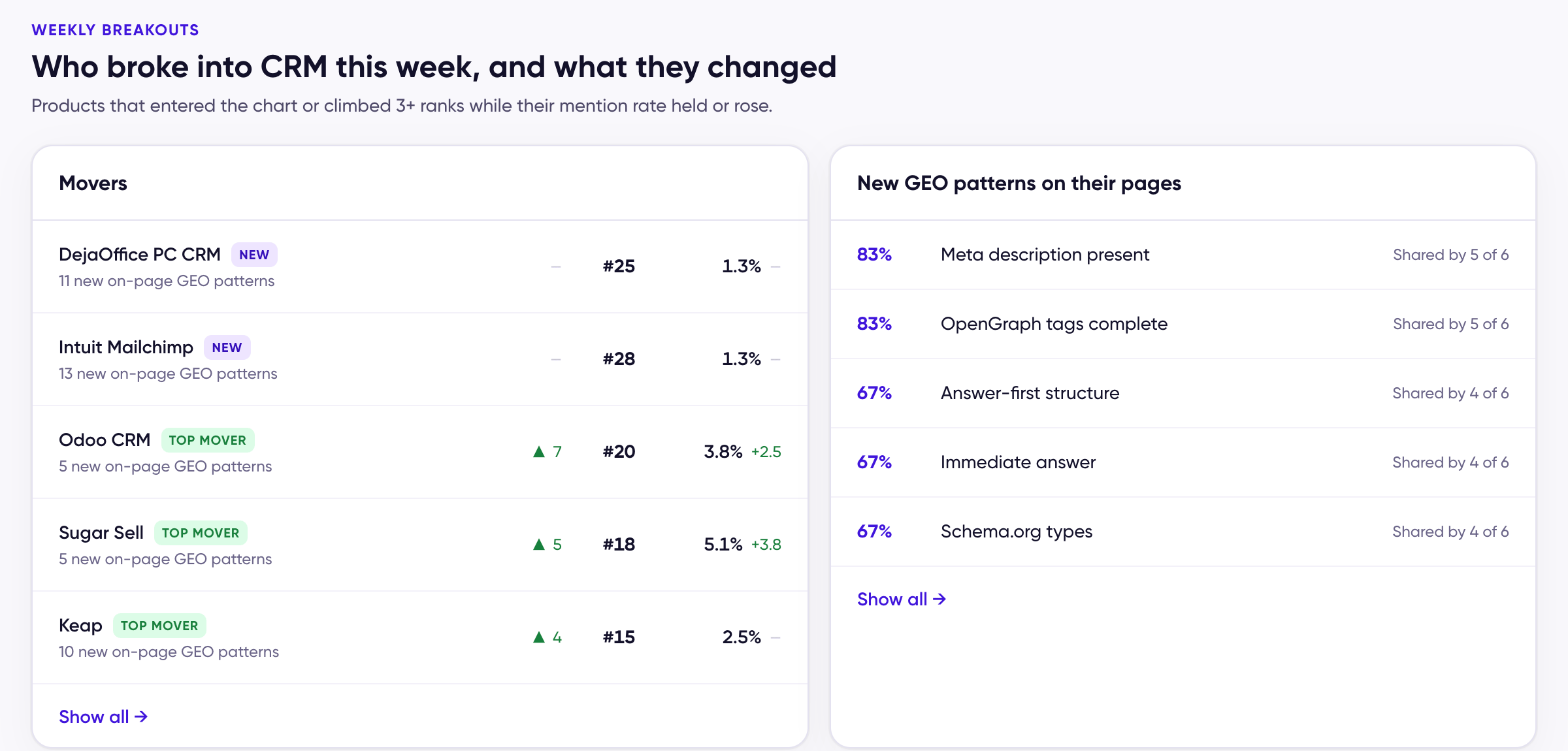
The tab answers *who's worth copying this week*: products that entered the chart or climbed three or more places while their mention rate held or rose. A week selector at the top right shows past weeks.
* **Movers** — each breakout with a **New** or **Top mover** badge, how many on-page GEO patterns it newly shows, and its rank and mention-rate change.
* **New GEO patterns on their pages** — the patterns the movers added, with the share of movers that share each one.
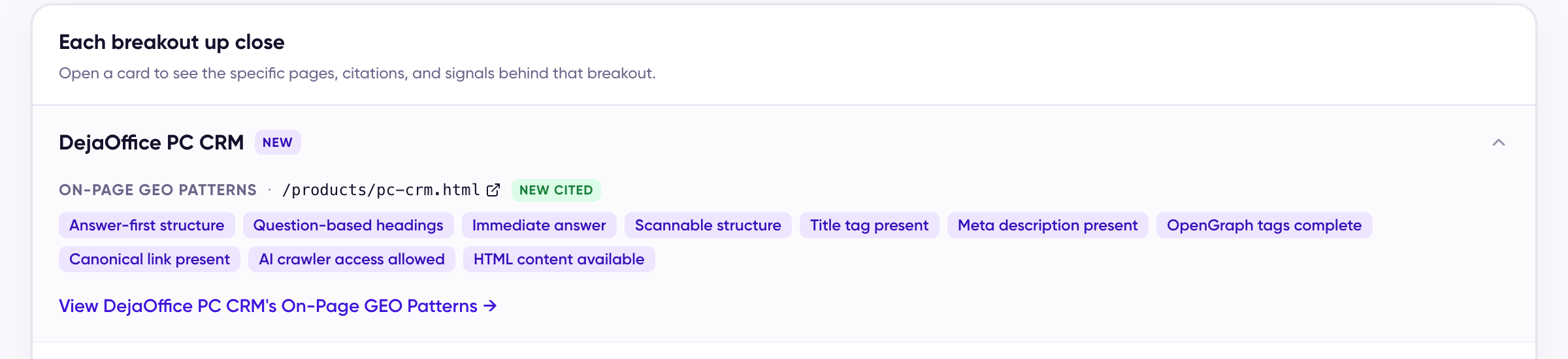
* **Each breakout up close** — open a product to see the pages AI cited, the patterns found on them, and a jump to that product's [On-Page GEO Patterns](/docs/using/on-page-geo-patterns).
* **Category Basics** — three of the fundamentals almost every top brand in the category has, with the share of the top 10 that has each. **See all 16 basics** opens the [Category Basics](/docs/using/category-basics) page.
* **Weekly Playbook** — three of the moves behind this week's movers. **See how** and **See all** open the [Weekly Playbook](/docs/using/weekly-playbook) page.
* **Which of these does your page already have?** — the band at the bottom starts the [GEO Guide](/docs/using/geo-guide) on your own page.
## Weekly Breakouts
The tab answers *who's worth copying this week*: products that entered the chart or climbed three or more places while their mention rate held or rose. A week selector at the top right shows past weeks.
* **Movers** — each breakout with a **New** or **Top mover** badge, how many on-page GEO patterns it newly shows, and its rank and mention-rate change.
* **New GEO patterns on their pages** — the patterns the movers added, with the share of movers that share each one.
* **Each breakout up close** — open a product to see the pages AI cited, the patterns found on them, and a jump to that product's [On-Page GEO Patterns](/docs/using/on-page-geo-patterns).
* **Category Basics** — three of the fundamentals almost every top brand in the category has, with the share of the top 10 that has each. **See all 16 basics** opens the [Category Basics](/docs/using/category-basics) page.
* **Weekly Playbook** — three of the moves behind this week's movers. **See how** and **See all** open the [Weekly Playbook](/docs/using/weekly-playbook) page.
* **Which of these does your page already have?** — the band at the bottom starts the [GEO Guide](/docs/using/geo-guide) on your own page.
 ### What each plan sees
 | | Signed out | Free | Pro |
| - | - | - | - |
| Week selector, section titles, GEO Guide band | Yes | Yes | Yes |
| Movers and New GEO patterns | Blurred preview behind a **Sign in** card | Yes | Yes |
| Each breakout up close | — | Products listed; the cited pages and patterns inside each are blurred, with **Upgrade with Pro** | Open: cited pages, pattern tags, and the link to On-Page GEO Patterns |
| Category Basics preview | — | Three basics shown; **See all** opens an upgrade prompt | Three basics; **See all** opens the Category Basics page |
| Weekly Playbook preview | — | Titles shown, cards blurred, with **Upgrade to Pro** | Three plays with **See how**; **See all** opens the Weekly Playbook page |
| | Signed out | Free | Pro |
| - | - | - | - |
| Week selector, section titles, GEO Guide band | Yes | Yes | Yes |
| Movers and New GEO patterns | Blurred preview behind a **Sign in** card | Yes | Yes |
| Each breakout up close | — | Products listed; the cited pages and patterns inside each are blurred, with **Upgrade with Pro** | Open: cited pages, pattern tags, and the link to On-Page GEO Patterns |
| Category Basics preview | — | Three basics shown; **See all** opens an upgrade prompt | Three basics; **See all** opens the Category Basics page |
| Weekly Playbook preview | — | Titles shown, cards blurred, with **Upgrade to Pro** | Three plays with **See how**; **See all** opens the Weekly Playbook page |
 ## Reading a breakout
A one-week climb is a data point, not a trend: before copying a mover, open its [Chart History](/docs/using/chart-history) and see whether it held the gain. For how to work from the movers when your own brand isn't ranked, see [Break Into the AI Ranking](/docs/get-started/break-into-the-ranking#feeling-overwhelmed-start-with-the-brands-that-just-entered).
This documentation is built and hosted on [Mintlify](https://mintlify.com), a developer documentation platform.
## Reading a breakout
A one-week climb is a data point, not a trend: before copying a mover, open its [Chart History](/docs/using/chart-history) and see whether it held the gain. For how to work from the movers when your own brand isn't ranked, see [Break Into the AI Ranking](/docs/get-started/break-into-the-ranking#feeling-overwhelmed-start-with-the-brands-that-just-entered).
This documentation is built and hosted on [Mintlify](https://mintlify.com), a developer documentation platform.