
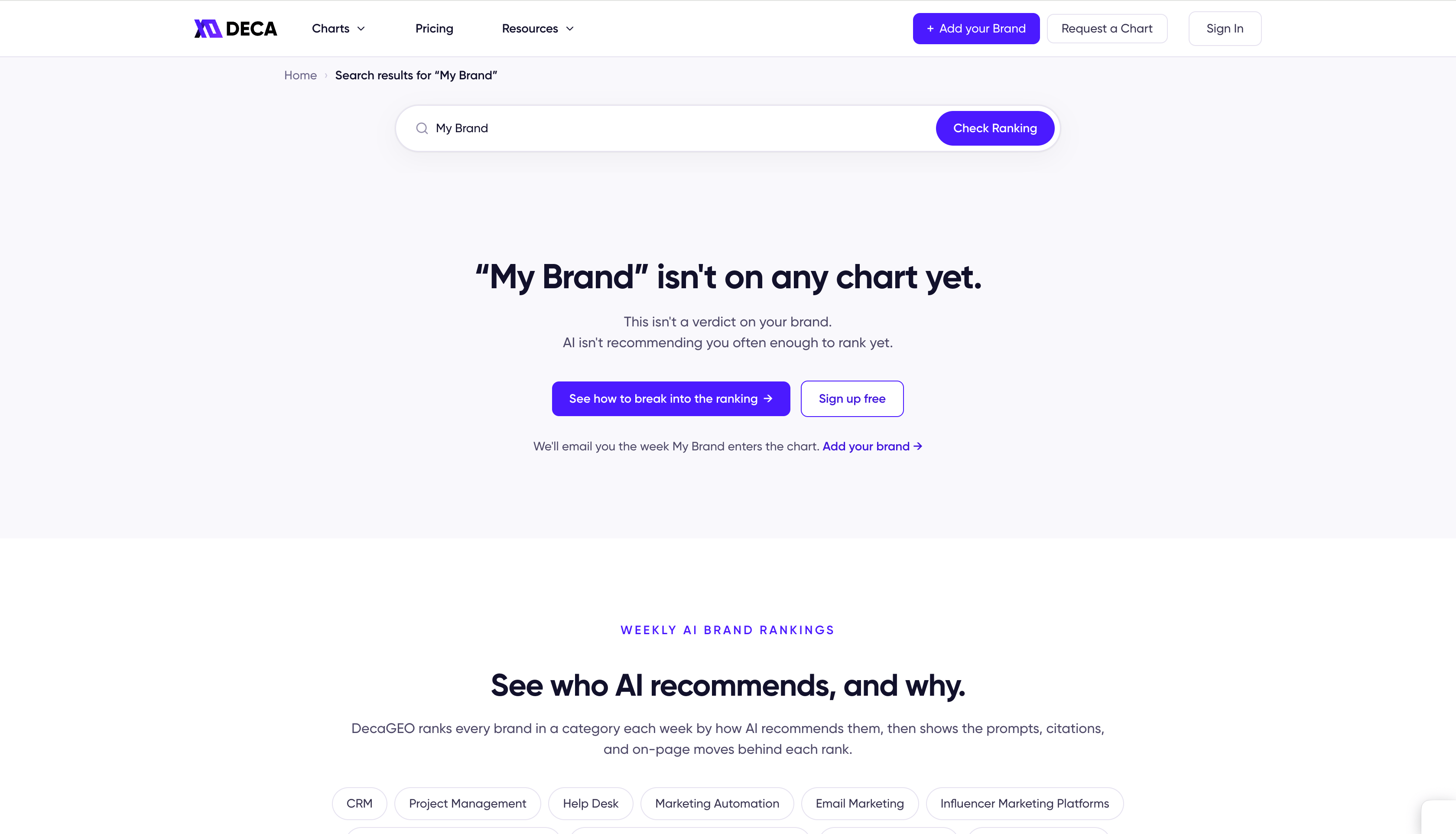
An unranked search result, the starting point this guide is written for.
Step 1: Check how AI defines your category
Your task: open your category’s chart, pick a top-ranked product, and click its row. That opens the product’s details. From there, open the Segment Position tab. Not sure which chart is yours? Pick the one your buyers would search, and check that your competitors appear on it. And if nothing fits exactly, don’t worry: the closest category still works, because the patterns you’ll read in the next steps are the same.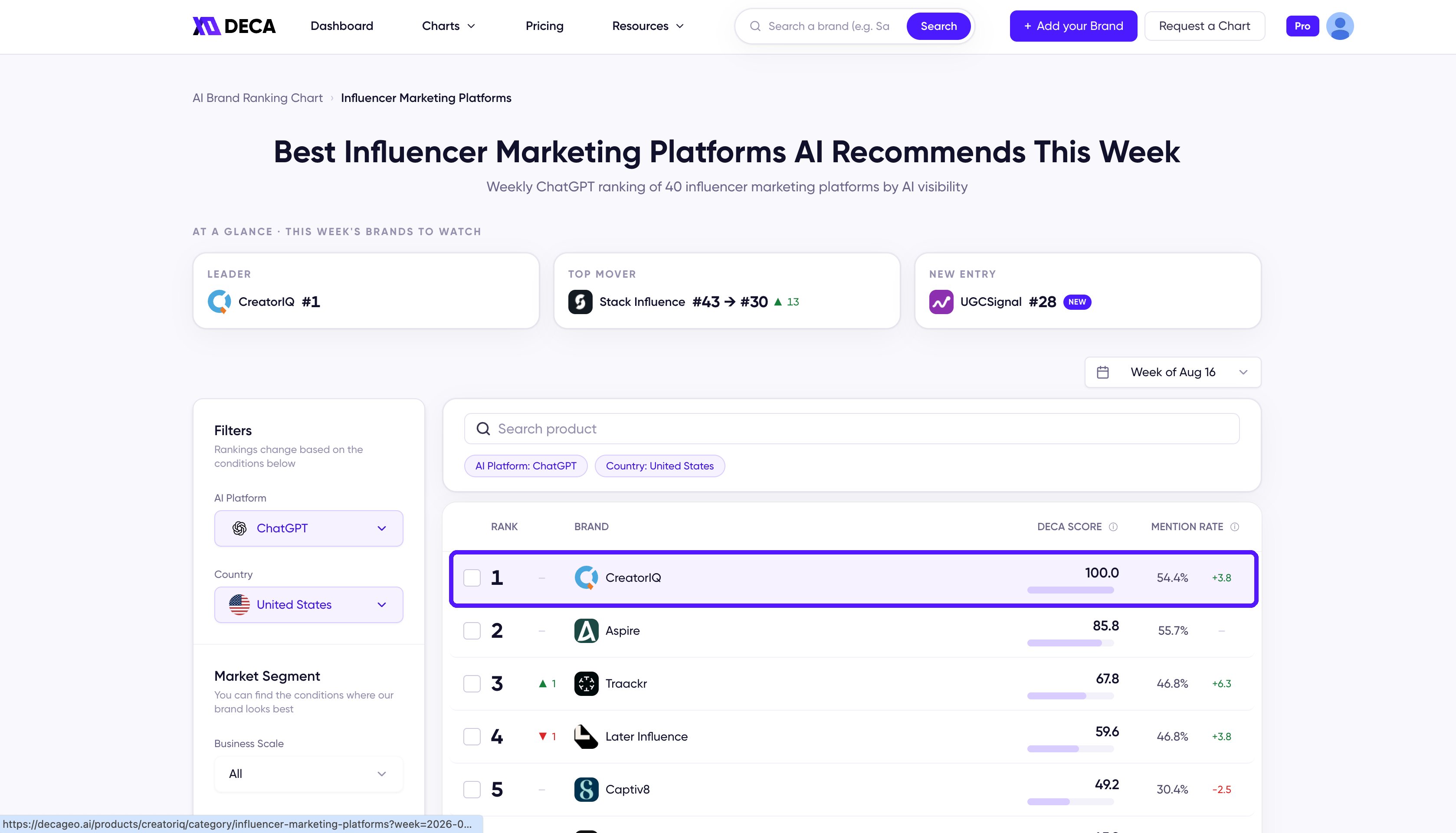
Any row on the chart opens that product's details.
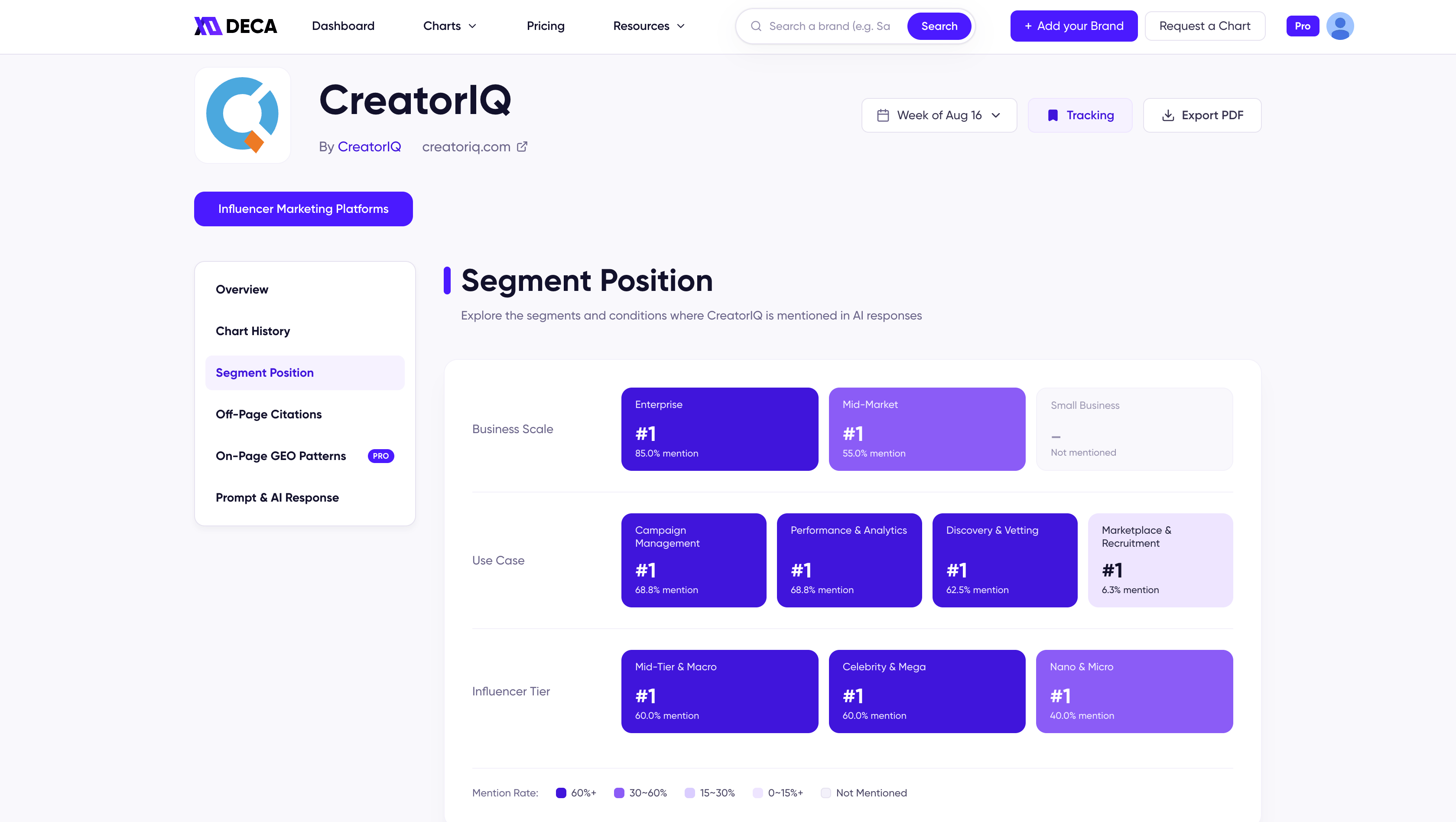
Segment Position: where a top brand is mentioned, segment by segment.
- Which segment does your product belong to? Find your place among the segments AI actually uses (they may be different from the words your own site uses today).
- Do your pages say it? Open your main page, feature pages, and docs, and look at the page title, the page description, the headings, the body text, and the FAQ. If the segment you belong to appears nowhere in that text, AI has no way to know you belong there. For example, if you’re in the GEO category, one of AI’s use-case segments there is visibility tracking. A site that only ever says brand monitoring is describing the same thing in different words, and AI matches words. One useful detail: AI often judges company-size fit (enterprise, small business) from pricing pages, so check yours too.
Step 2: Learn the words AI actually uses
Your task: on the same product, open Prompt & AI Response. Each row on this page is one question, showing the AI platform and the brand ranking trail for it. Click a row, and the full response opens in a side panel with the prompt, the brands it mentioned, and the answer exactly as AI wrote it. Read a few of them.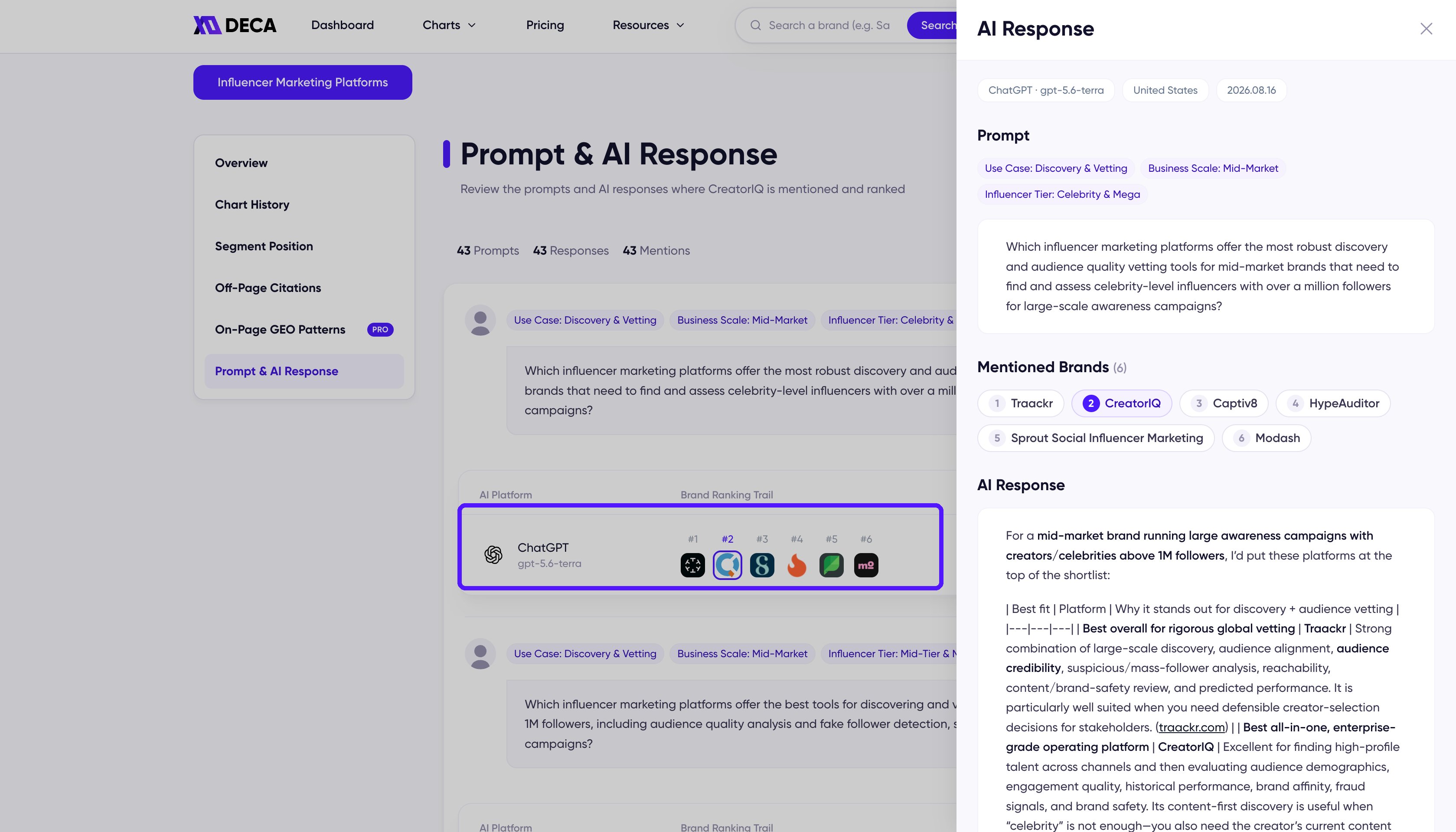
Click a response row and the full AI answer opens in a side panel.
Step 3: Compare your pages against the pages AI cites
Your task: open On-Page GEO Patterns on a top-ranked product and compare each of its three areas with your own pages.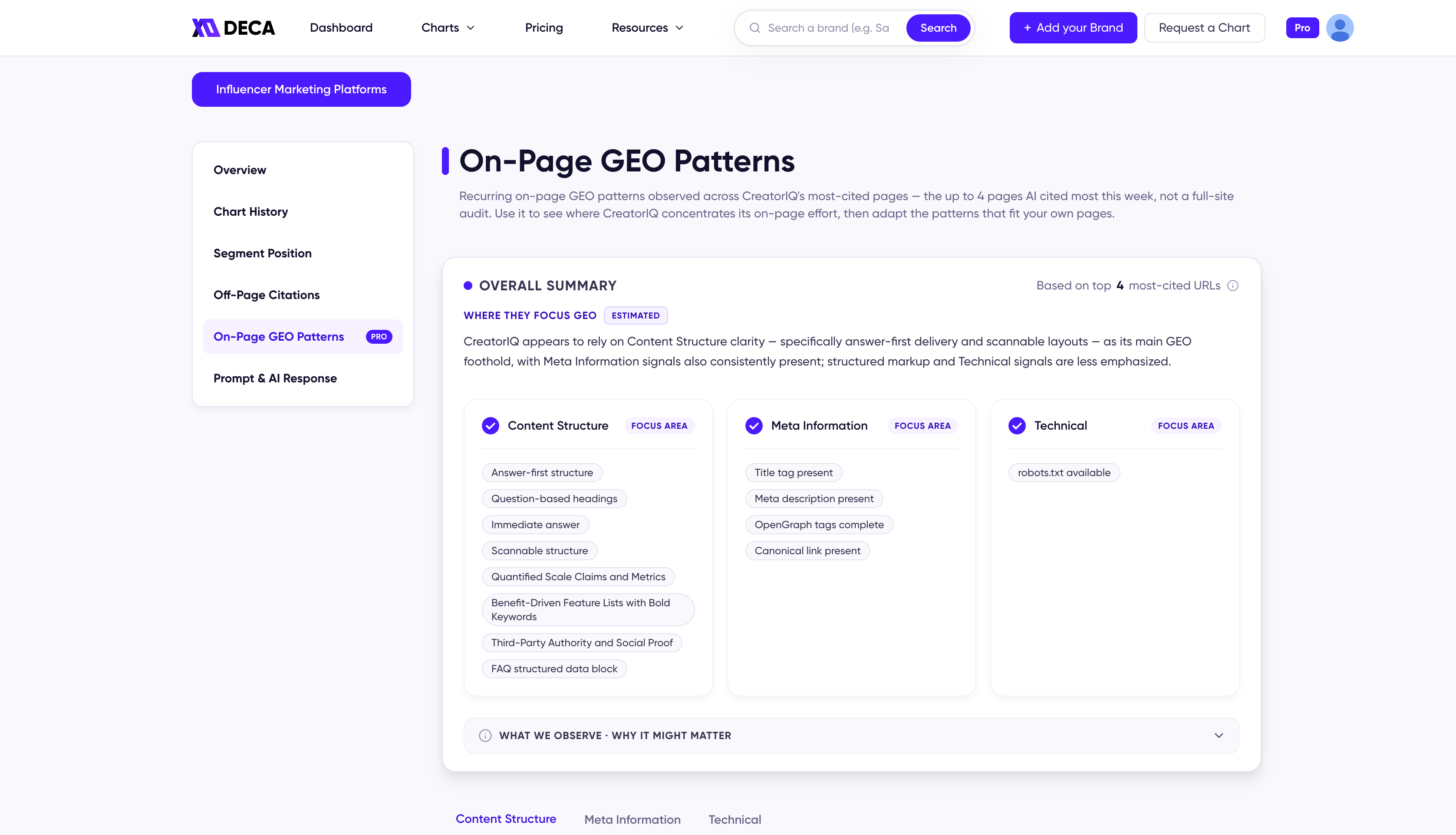
On-Page GEO Patterns: what a top brand's most-cited pages do, in three areas.
- Content Structure: how the content is laid out. The answer stated first and explained after, headings written as questions, sections short enough to scan, and an FAQ.
- Meta Information: the parts of a page that crawlers read but visitors rarely see. The title tag, the description, and tags that tell crawlers how to index and display the page.
- Technical: whether AI crawlers are allowed to read your site at all, through settings files like robots.txt and llms.txt.
Step 4: Check that AI can actually read your site
Your task: paste your page’s address into an AI chat (ChatGPT works fine) and ask it to read and summarize the page.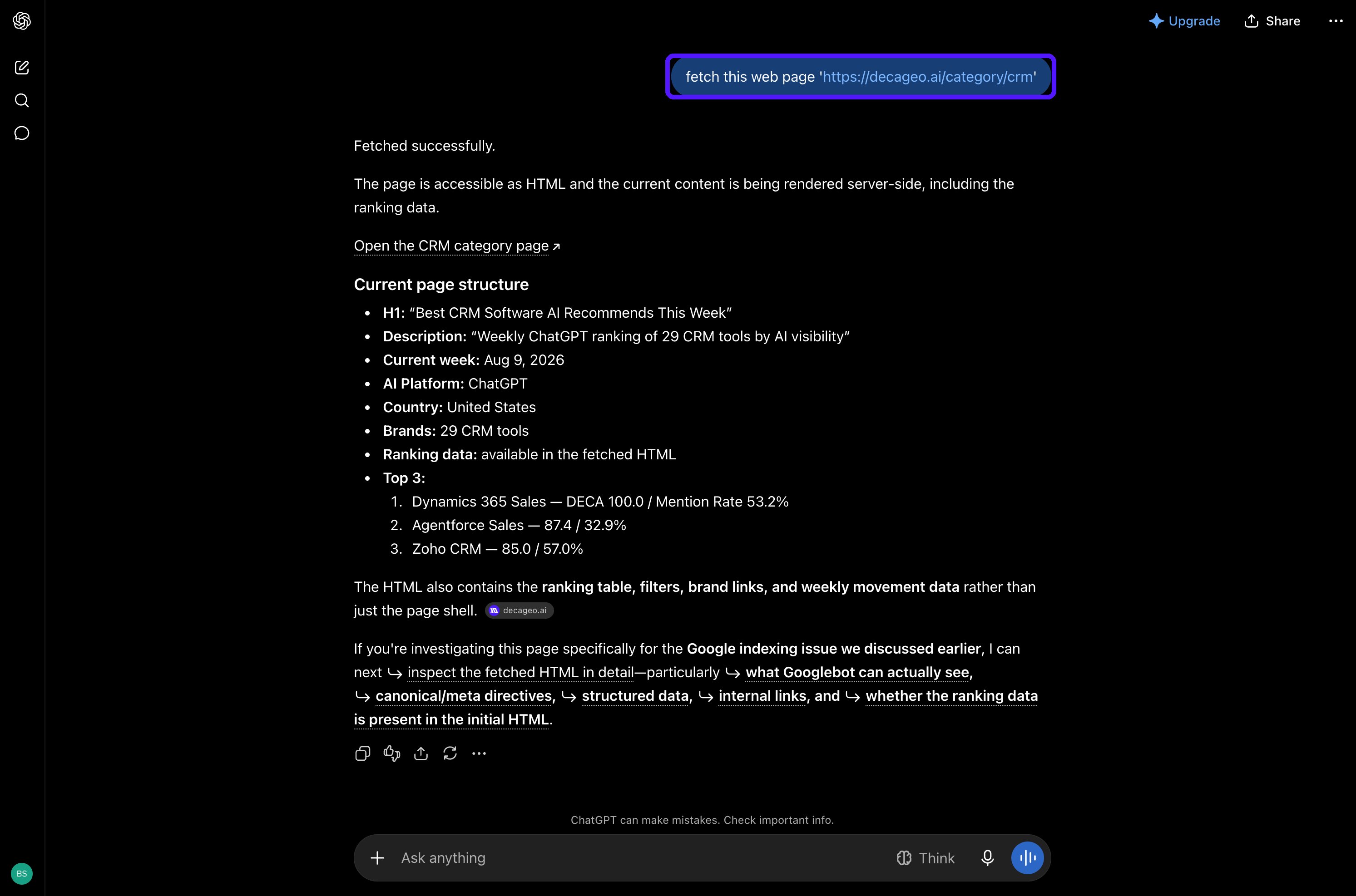
The simplest reachability test: ask an AI chat to fetch your page.
Feeling overwhelmed? Start with the brands that just entered
A #1 product can show you dozens of things at once, and you don’t need to match them all this week. There’s an easier starting point: find the brands that entered the chart this week or climbed the most, and read their product details instead. These brands were unranked recently, exactly where you are now, so what they changed is the shortest list of what actually gets a brand onto the chart.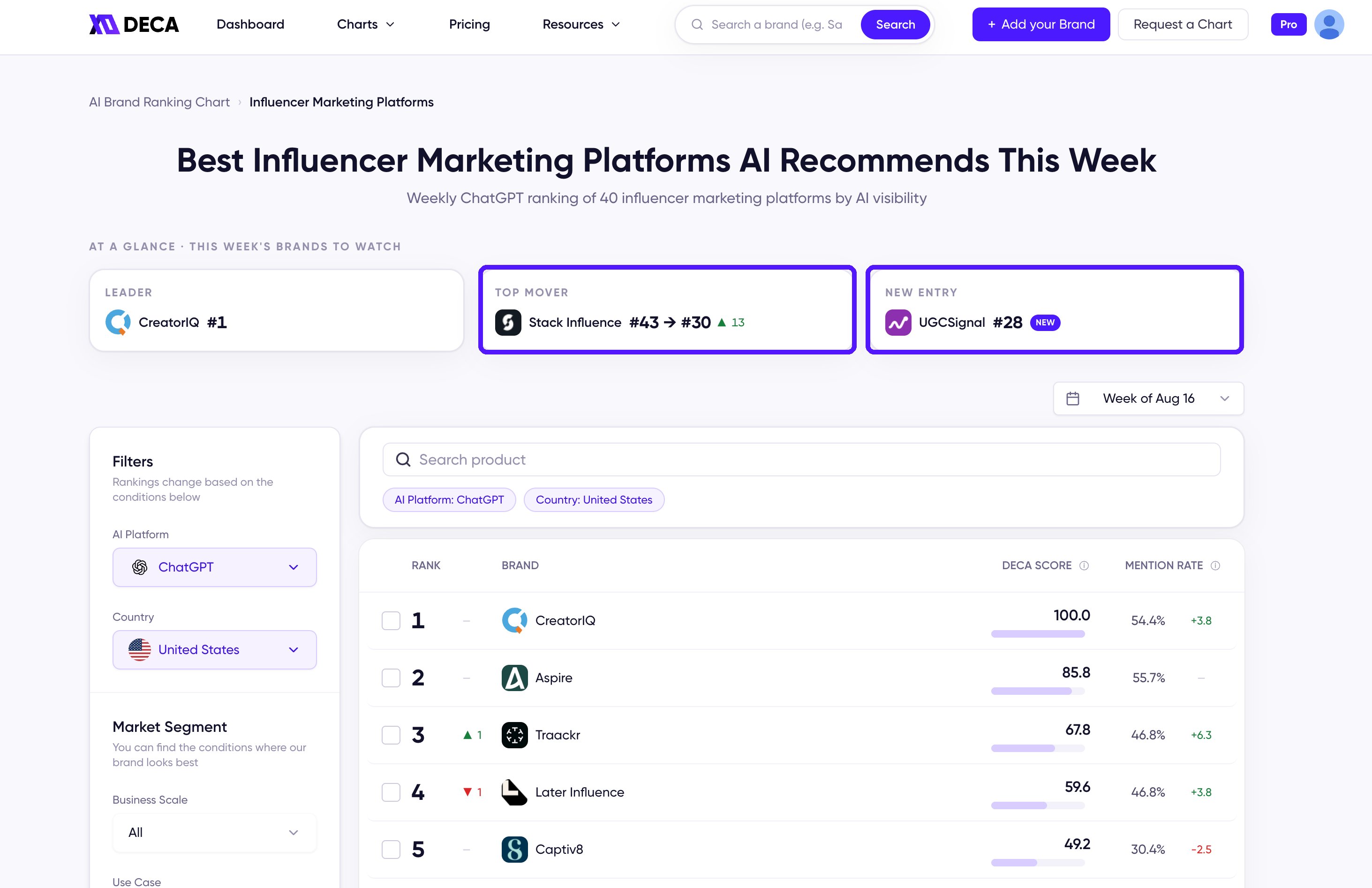
The Top Mover and New Entry cards on every category chart point you to this week's climbers.
Get notified the week you enter
The steps above change your site; the chart tells you when the change worked. Rankings refresh weekly, and changes usually need a few weekly cycles to show up, so don’t read anything into a quiet first week. Add your brand and DecaGEO will send you an alert the week AI starts recommending it, so there’s no need to come back and search again every week.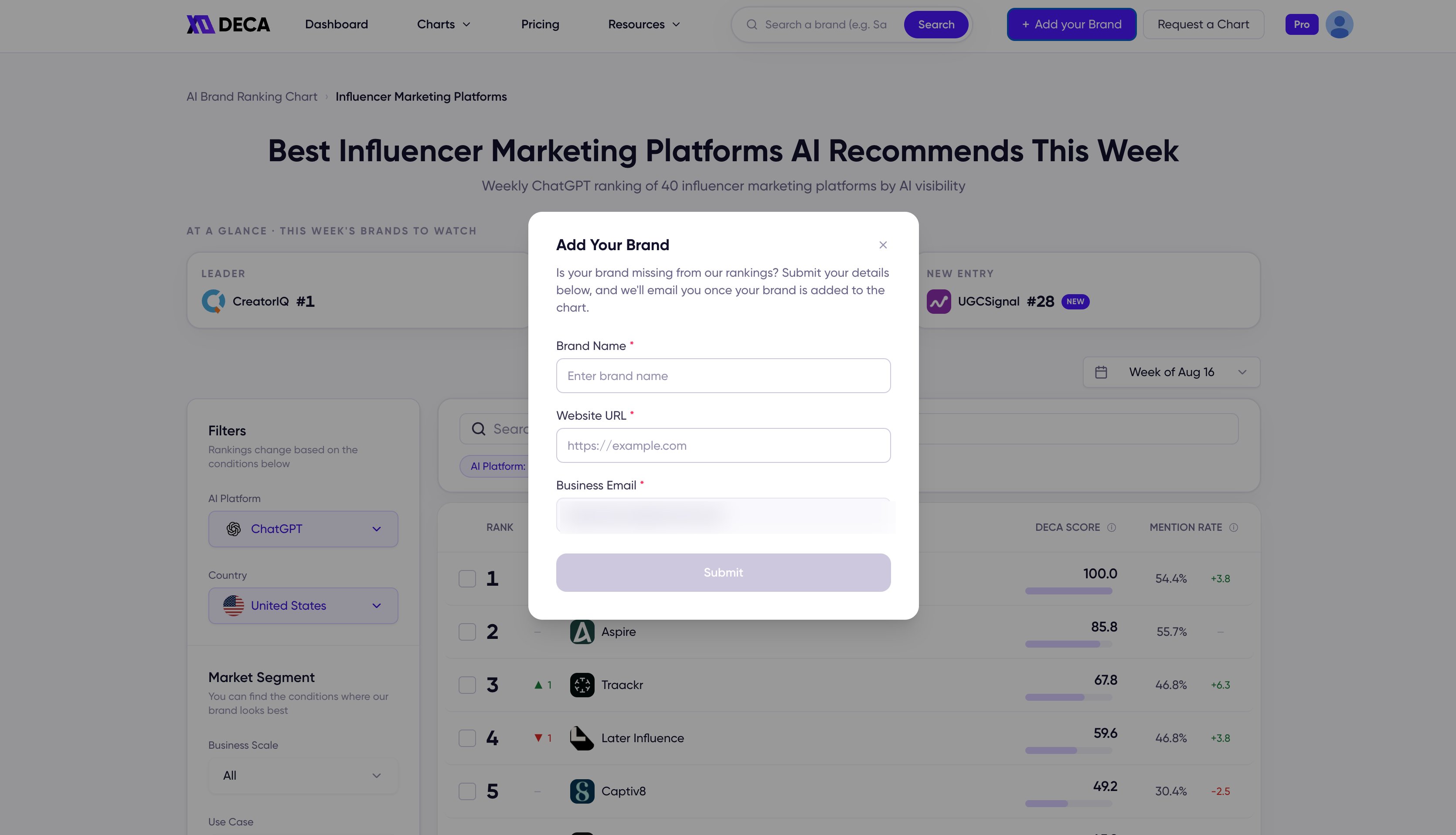
Add Your Brand: three fields, and you'll hear the week your brand enters.
What’s next
How to read the ranking
The chart’s signals, the three numbers on every row, and the evidence tabs behind them.
Improve your rank
Once you chart, this weekly loop takes over: diagnosis to proof, every week.