

Your answers are kept in your browser, not on our servers. Start over clears them.
Where to start it
Open Dashboard from the header — it opens on the GEO Guide card. The same Start GEO Guide band sits under the Weekly Breakouts tab of every category chart and on every product’s Overview, so you can start it from wherever you noticed the gap.- Before you start — it lists the five screens you’ll walk through, behind a Start the check button.
- Partway through — it shows where you stopped, your last question and answer, and Continue drops you back in.
- After you finish — with fixes still open, it counts them and offers Review what you found, plus a reminder that nothing is watched for you, so come back and run it again once you’ve changed something. With nothing to fix, it says so and offers See what to do next instead.
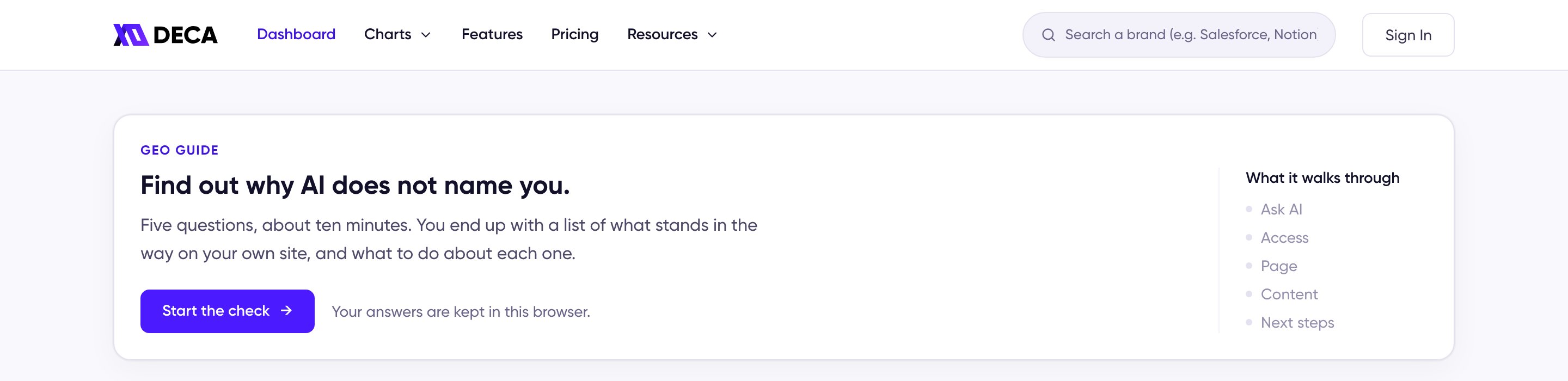
The Dashboard, before you start the Guide
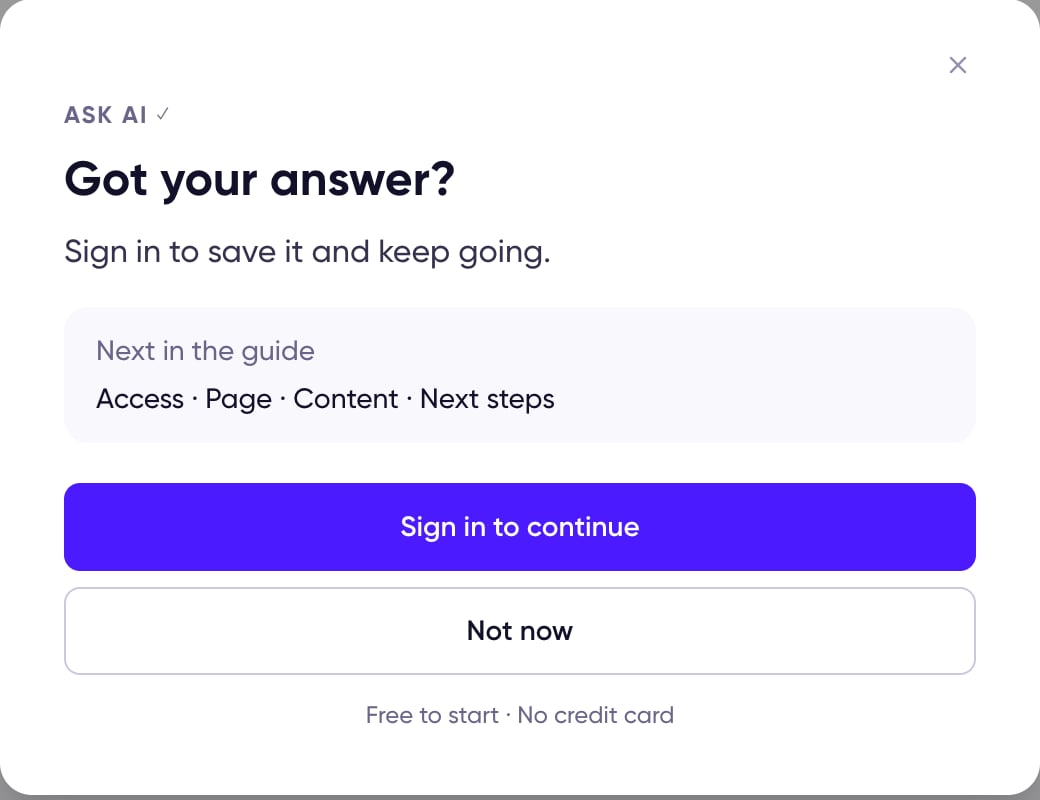
The sign-in prompt after the first answer
The five screens
A progress trail across the top — Ask AI · Access · Page · Content · Next steps — shows where you are. Every screen ends in an answer.1. Ask AI
AI answers buying questions by running a search and picking from what it finds, so the Guide starts by checking whether your name comes up at all. Write the product category you sell into and who it is for, and what they need — in the words a buyer would use, not your internal ones. The Guide turns the two into a buying question (“What is the best CRM Software for small business sales teams?”). Ask ChatGPT opens it in a temporary chat, so ChatGPT’s memory of you doesn’t tilt the answer, and copies the question to your clipboard in case it doesn’t carry over. Copy question copies without opening anything, for when you’ve already asked. Read the answer it gives and tell the Guide whether your name came up. Your brand or product name anywhere in the answer counts. AI does not answer the same way every time, so treat this as a first look, not a measurement — Want a firmer read? explains how to make it one. Answer Yes and the Guide skips the site checks and goes straight to the last screen. If AI already names you, whether it can reach your site is no longer the question.2. Access
ChatGPT search uses its own crawler, OAI-SearchBot, and draws on the web results Bingbot feeds it. This step checks whether your robots.txt lets both of them in. Give the Guide your site and it reads your robots.txt for you, then reports Allowed or Blocked. When it reads as blocked, you get the lines that decided it and the lines to add, along with a note on which of your existing rules the fix leaves alone. Check again re-reads the file once you’ve deployed it, and Change the address takes you back to the address box if you typed the wrong site. If your site refuses the request or never answers, the Guide says so instead — something in front of your site is turning away automated requests, which is a different problem from a rule in the file.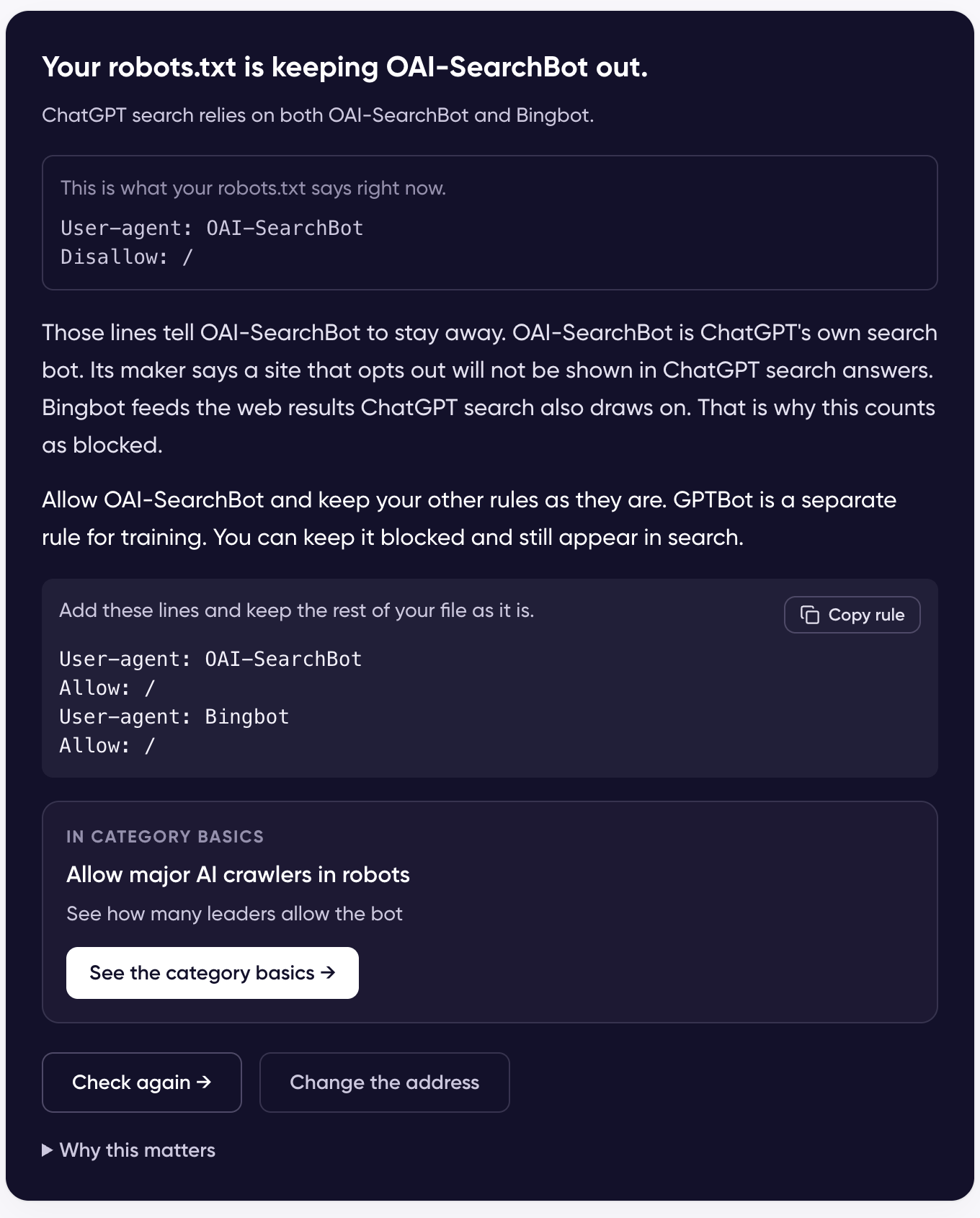
A blocked robots.txt, with the lines that decided it, the lines to add, and the Category Basics prescription
3. Page
Not every page has the same chance of being cited. Pricing and feature pages get cited far more often than blog posts — see Which Pages ChatGPT Actually Cites for the rates behind that. Pick the one page you would send a buyer who asked your question, and the Guide opens it the way a bot would: does it respond, does it allow indexing, and does it name itself as the main address rather than pointing elsewhere. If there’s no page to give it, I do not have a page for this on the same screen skips the check and goes straight to the fix. If the bot can’t use the page, the Guide lists the symptoms to choose from — anoindex tag, a canonical pointing at another address, an address with nothing at it, an error, a timeout — with whatever it found already surfaced at the top. The list also covers the case where nothing on your site is built for this question: we only have a homepage, we answer it in a blog post, we have not written about it yet.
4. Content
Once a bot can read the page, the question is whether the page competes for your buying question. The Guide reads back what a bot sees — the date, the title, the H1, and the headings — under What the bot reads, with your own question kept separate below it, so you can judge whether the words match. Bots match words, and those lines are where the match has to show up. Open in ChatGPT hands the comparison to ChatGPT with the prompt pre-filled, and Copy prompt puts it on your clipboard instead. Then answer whether it all matches or some words are missing.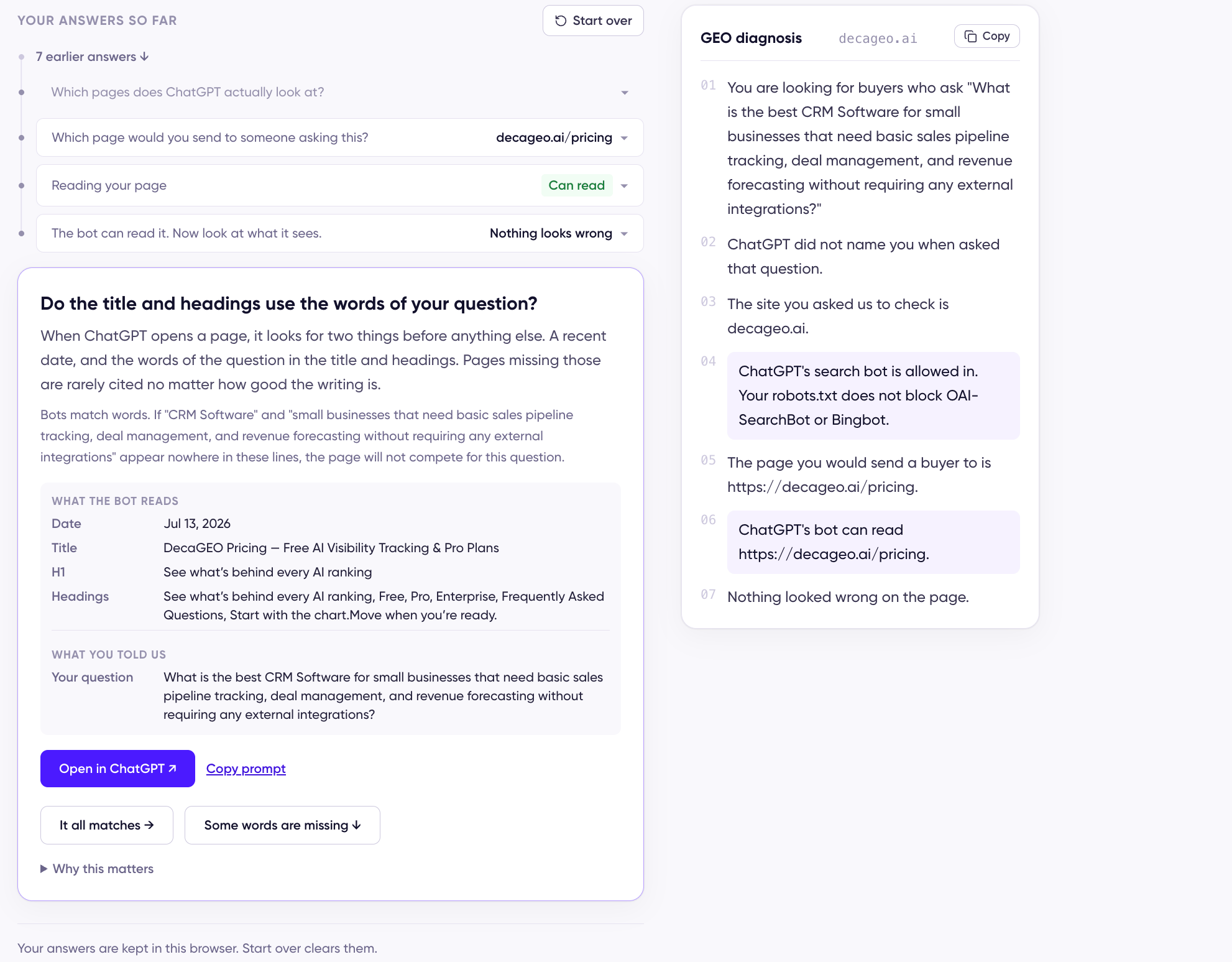
What the bot reads, kept separate from the question you gave the Guide
5. Next steps
Whether you cleared the site checks or skipped them because AI already names you, what’s left is being chosen — whether AI sees your category the way you do, and whether it hears your name outside your site. The last screen points you at what answers it: a tab on your product page, or a page on the category chart.
The Guide doesn’t know your brand’s page on DecaGEO, so for the two product-page tabs it opens the documentation for that tab rather than the tab itself.
Where else does AI hear your name? also carries a ChatGPT prompt the other rows don’t — it asks which pages already mention your brand and how each one describes you, so you see what exists before paying anyone for more. The Guide never learned your brand name, since the first screen asks only for your category and your buyer, so it asks for it here and keeps both buttons disabled until you fill it in. The name goes into that one prompt and nowhere else.
Prescriptions on the Access, Page, and Content screens link the same way, under an In Category Basics or In Weekly Playbook heading. Both are Pro pages: with Pro, the item the prescription named opens already expanded (if the Weekly Playbook no longer lists that play, the first play opens instead). On the Free plan the link lands on the Weekly Breakouts tab with an upgrade prompt, and signed-out visitors are asked to sign in first.
The report
GEO diagnosis, on the right, fills in as you answer. Each answer becomes a numbered line, and anything worth fixing is collected under What to fix, with what to change and why. The links into Category Basics and Weekly Playbook sit on the prescription screens themselves, not in the report. Copy turns the whole report into Markdown, so it pastes into Notion, Slack, or a ticket for whoever owns the change. On a phone the report moves to a collapsed row above the questions — tap it to open.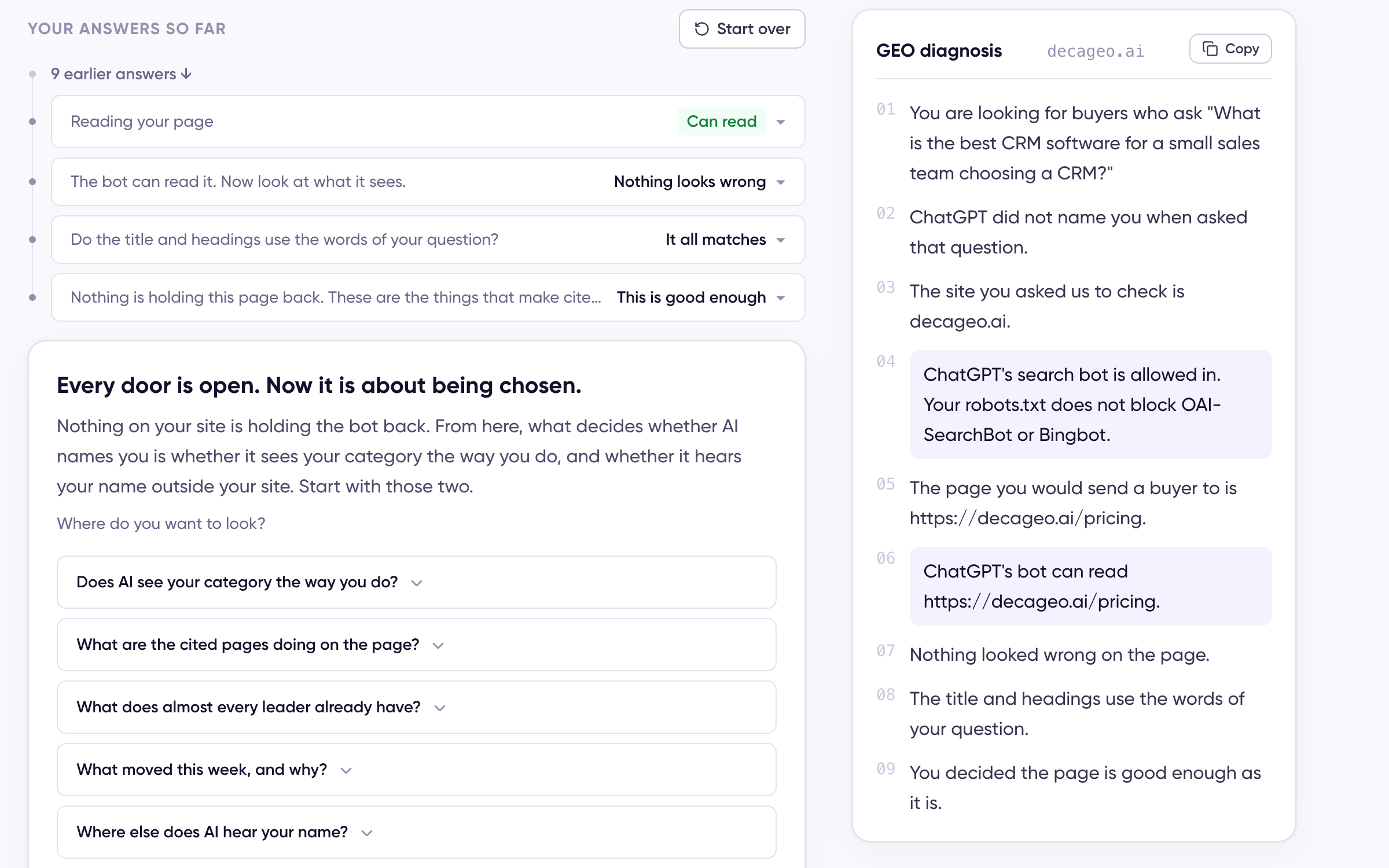
The last screen, with the report filled in from every answer
About our checker
Two steps read your site directly. Both run only when someone presses the button in the Guide, against the address they entered.
This user-agent appearing in your server logs means someone ran the Guide against that address.
It is not a crawler, so it does not follow robots.txt rules: it fetches the one address a person typed into the Guide, once, the way their browser would — there is no schedule to opt out of. If you want to refuse it anyway, block the user-agent at your server or CDN.
Whether ChatGPT can reach your site is a separate question, decided by the
OAI-SearchBot and Bingbot rules the Access step reads.