

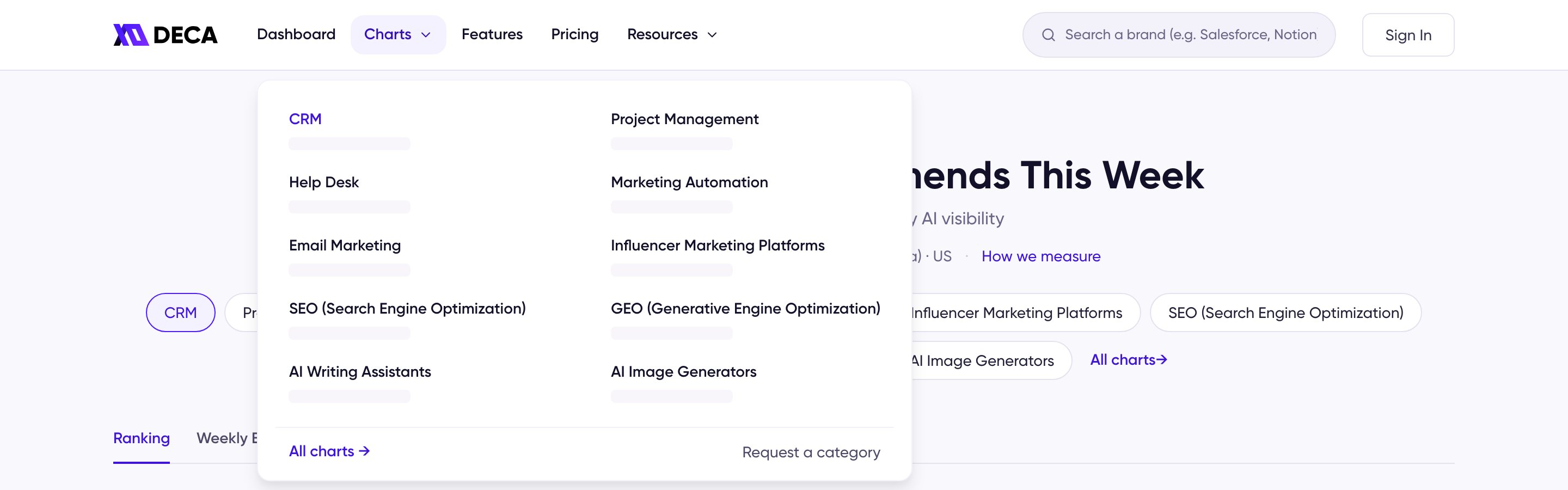
The Charts menu: the ten categories, All charts, and Request a category
The Charts hub
The hub shows one card per category: this week’s #1, how many brands are ranked, and the top mover with how many places it climbed. The line above the cards names the week, the total brands ranked across all charts, and the AI platform and market measured, with a link to How we measure. Click a card to open that chart. Under the cards, Don’t see your category? opens the Request a Chart form — see Add Your Brand.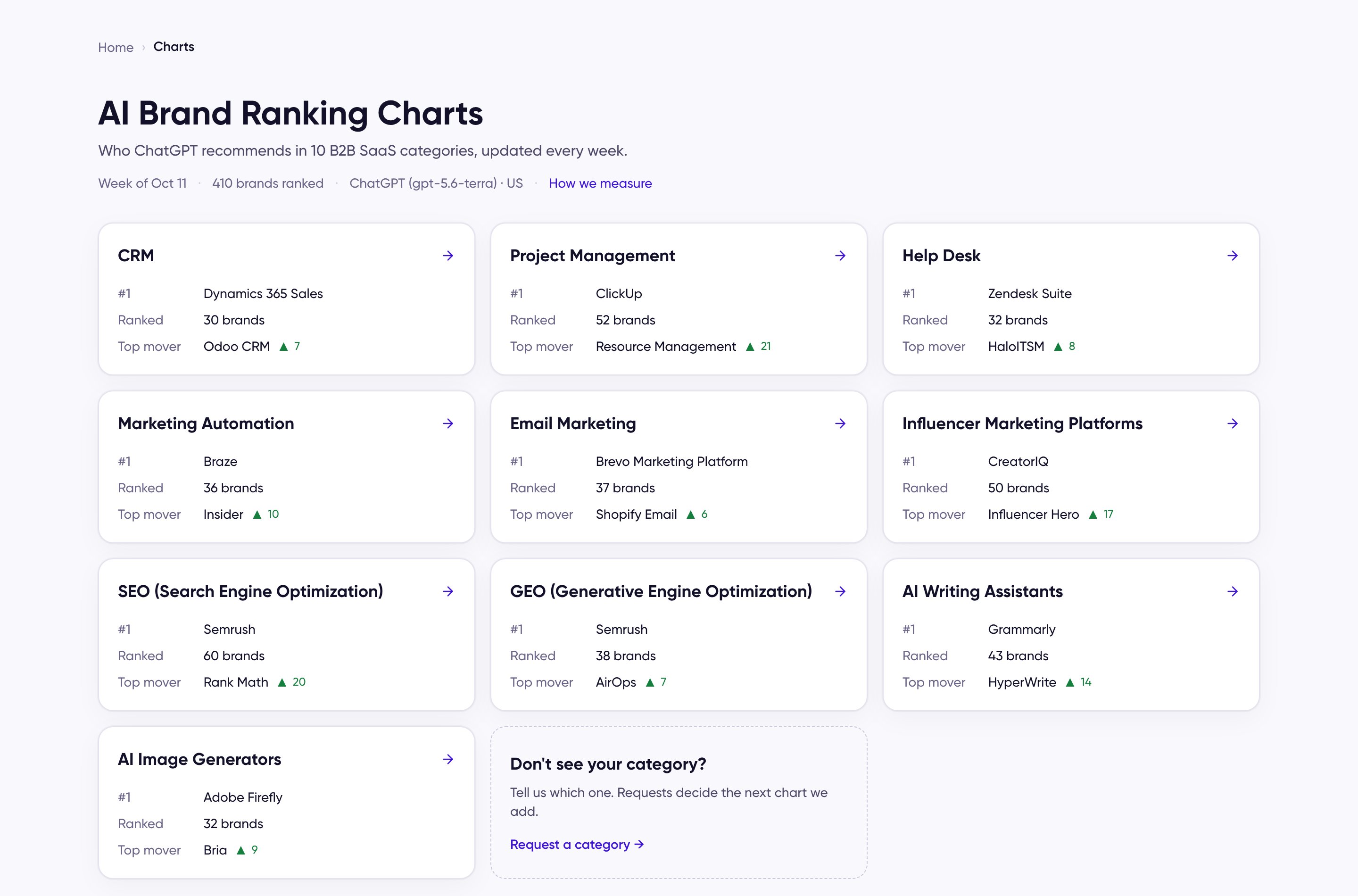
The Charts hub
A category chart
Every chart opens with its path (Home › Charts › category), the week, how many brands are ranked, and the model and market measured. A row of category chips switches to any other chart in place, and All charts returns to the hub. Below that sit the two tabs. The Ranking tab is the weekly table — AI Ranking Chart explains its columns, filters, and market segments. A band under the table counts how many products broke in or climbed this week and opens the second tab.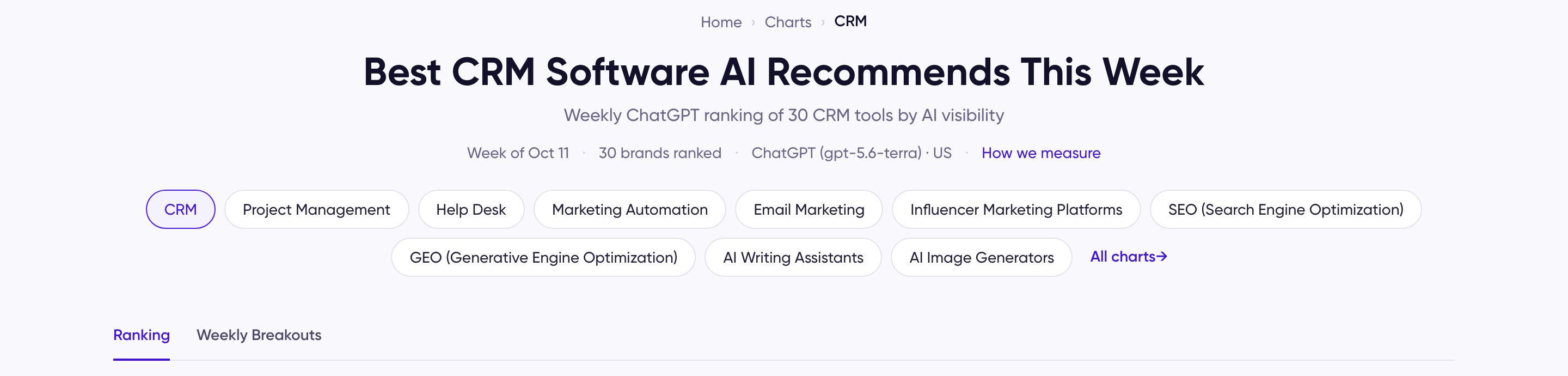
The top of a category chart: path, week, category chips, and the two tabs
Weekly Breakouts
The tab answers who’s worth copying this week: products that entered the chart or climbed three or more places while their mention rate held or rose. A week selector at the top right shows past weeks.- Movers — each breakout with a New or Top mover badge, how many on-page GEO patterns it newly shows, and its rank and mention-rate change.
- New GEO patterns on their pages — the patterns the movers added, with the share of movers that share each one.
- Each breakout up close — open a product to see the pages AI cited, the patterns found on them, and a jump to that product’s On-Page GEO Patterns.
- Category Basics — three of the fundamentals almost every top brand in the category has, with the share of the top 10 that has each. See all 16 basics opens the Category Basics page.
- Weekly Playbook — three of the moves behind this week’s movers. See how and See all open the Weekly Playbook page.
- Which of these does your page already have? — the band at the bottom starts the GEO Guide on your own page.
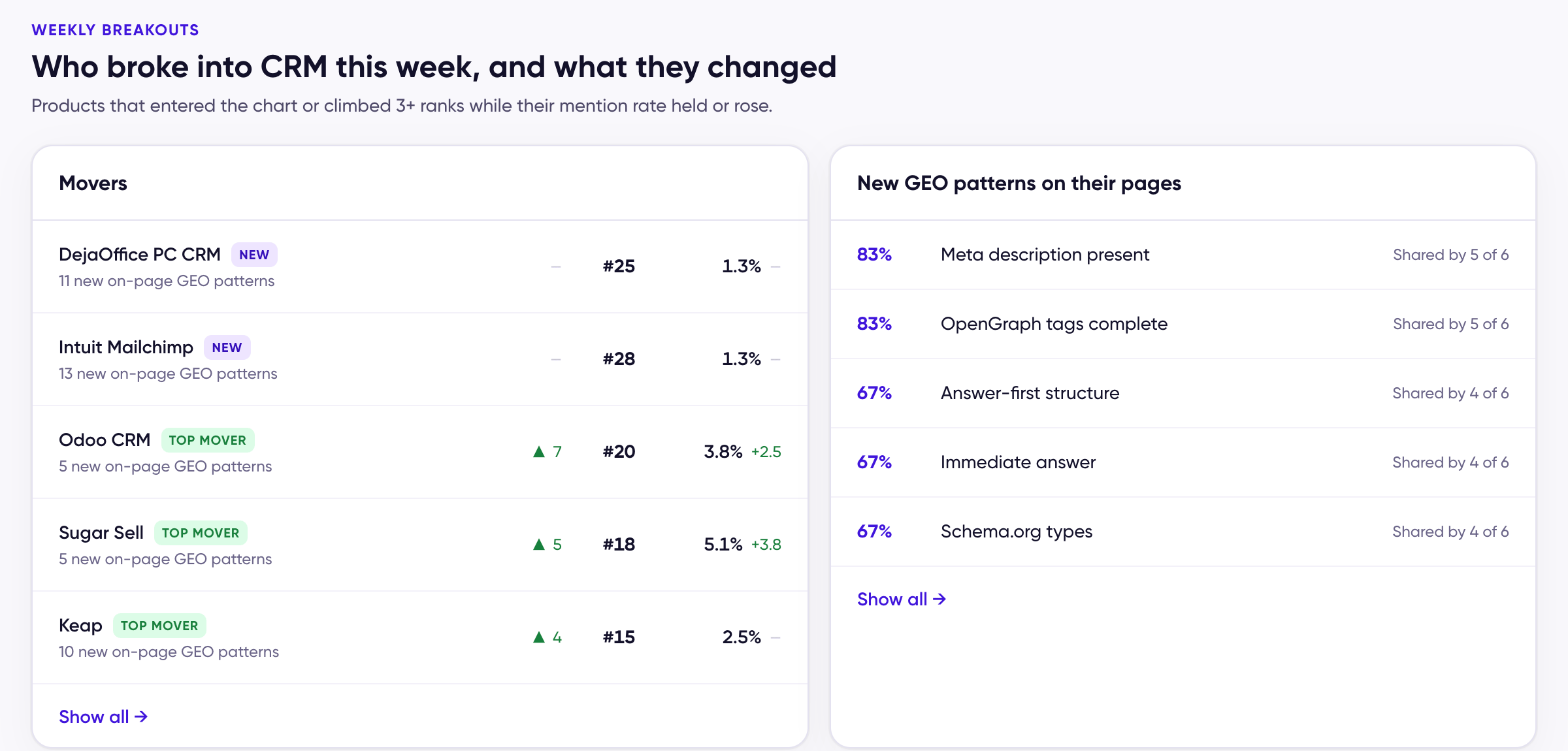
Movers and the GEO patterns they added
What each plan sees
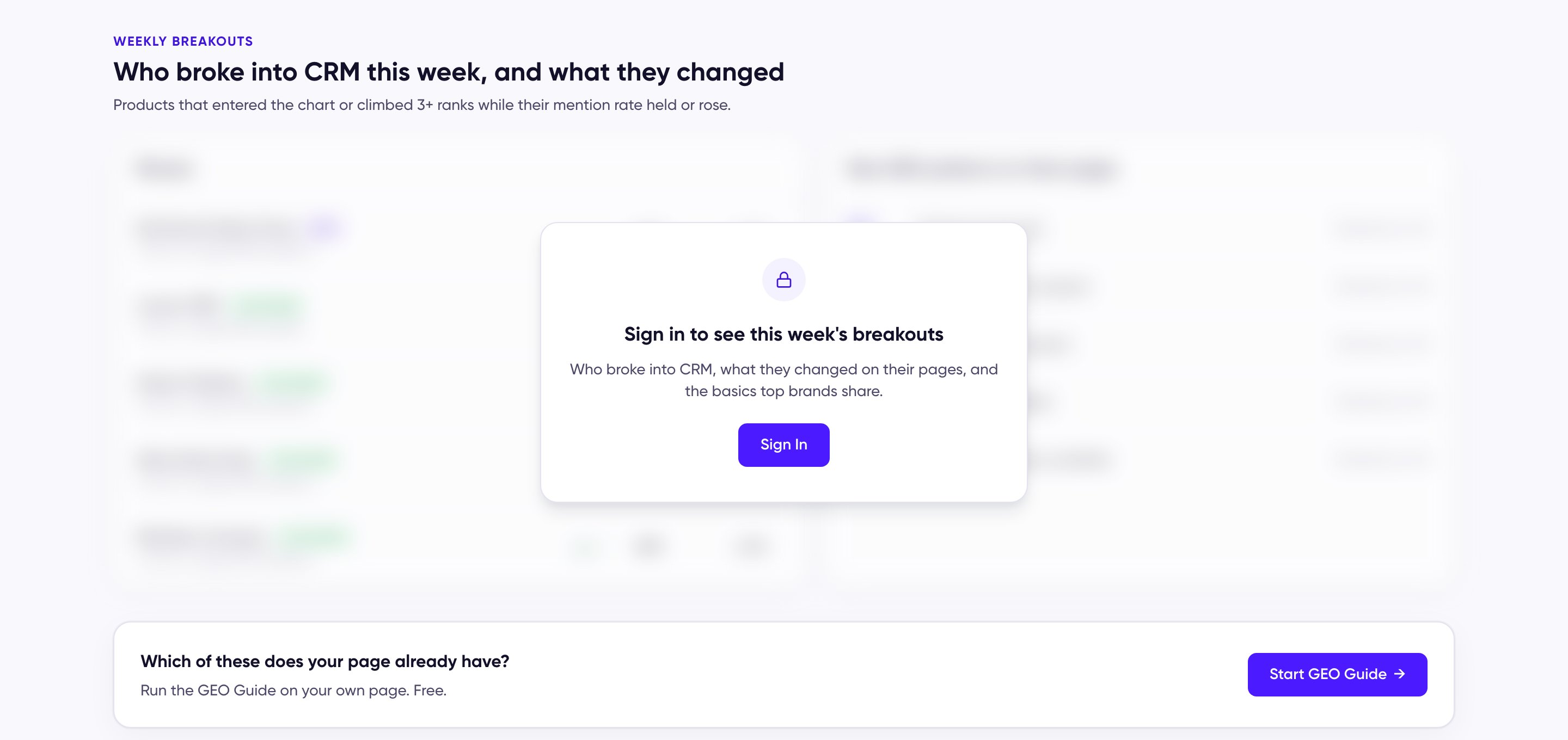
Signed out: the week's list is blurred behind a Sign in card
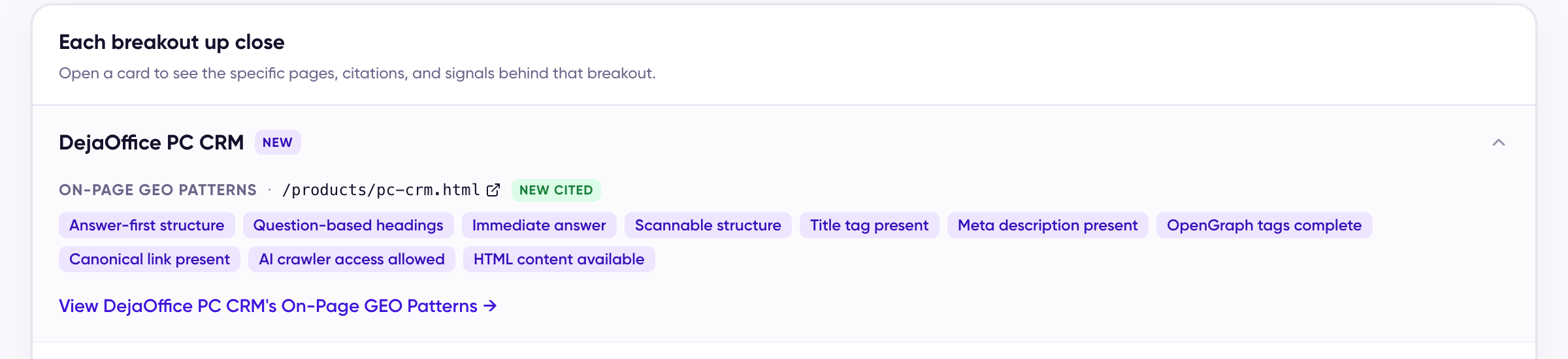
A breakout opened on Pro: the cited page and the patterns found on it