

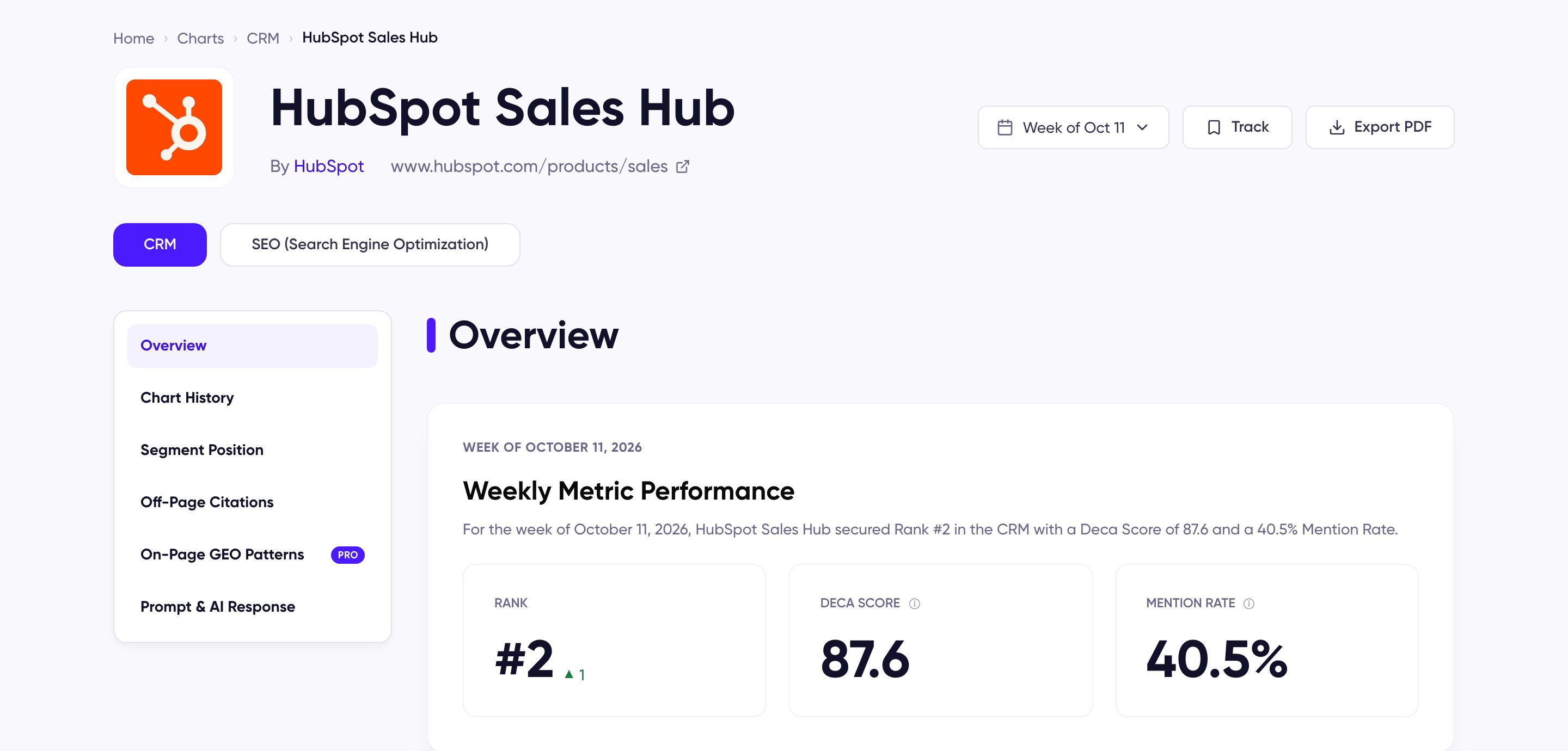
A product detail page, opened to the Overview tab
The Overview tab
The Overview tab opens with Weekly Metric Performance — the product’s Rank, DECA Score, and Mention Rate for the selected week, each with its change — followed by previews of the product’s recent chart movement, top segments, and on-page GEO focus. Each preview links to its full tab with View Details. Below those previews, the On-Page GEO Patterns card shows what a pattern breakdown looks like on an example page when you’re signed out or on the Free plan, marked EXAMPLE; Pro replaces it with the patterns behind the product’s own cited pages. Under it, a Start GEO Guide band runs the same check on your own page, and the page closes with the category’s current Top 3.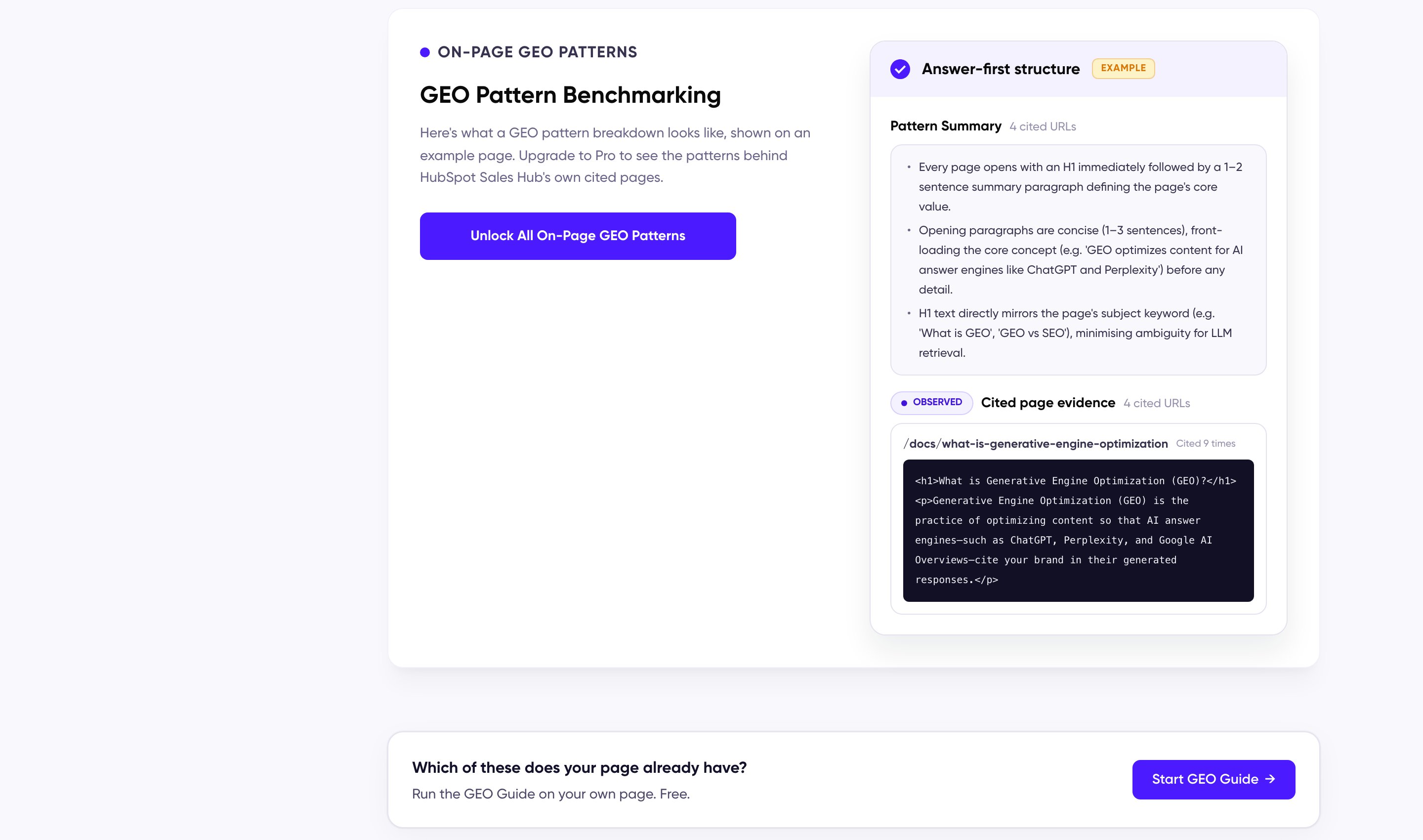
The On-Page GEO Patterns preview on the Free plan, and the GEO Guide band under it